
Your scene stays in SketchUp. The render is produced in Syntina.
Send the active view, references and a short brief from the plugin panel — material, lighting and atmosphere variations arrive without leaving SketchUp.
 SketchUp Pro 2023, rendered from the extension
 The extension panel inside SketchUp
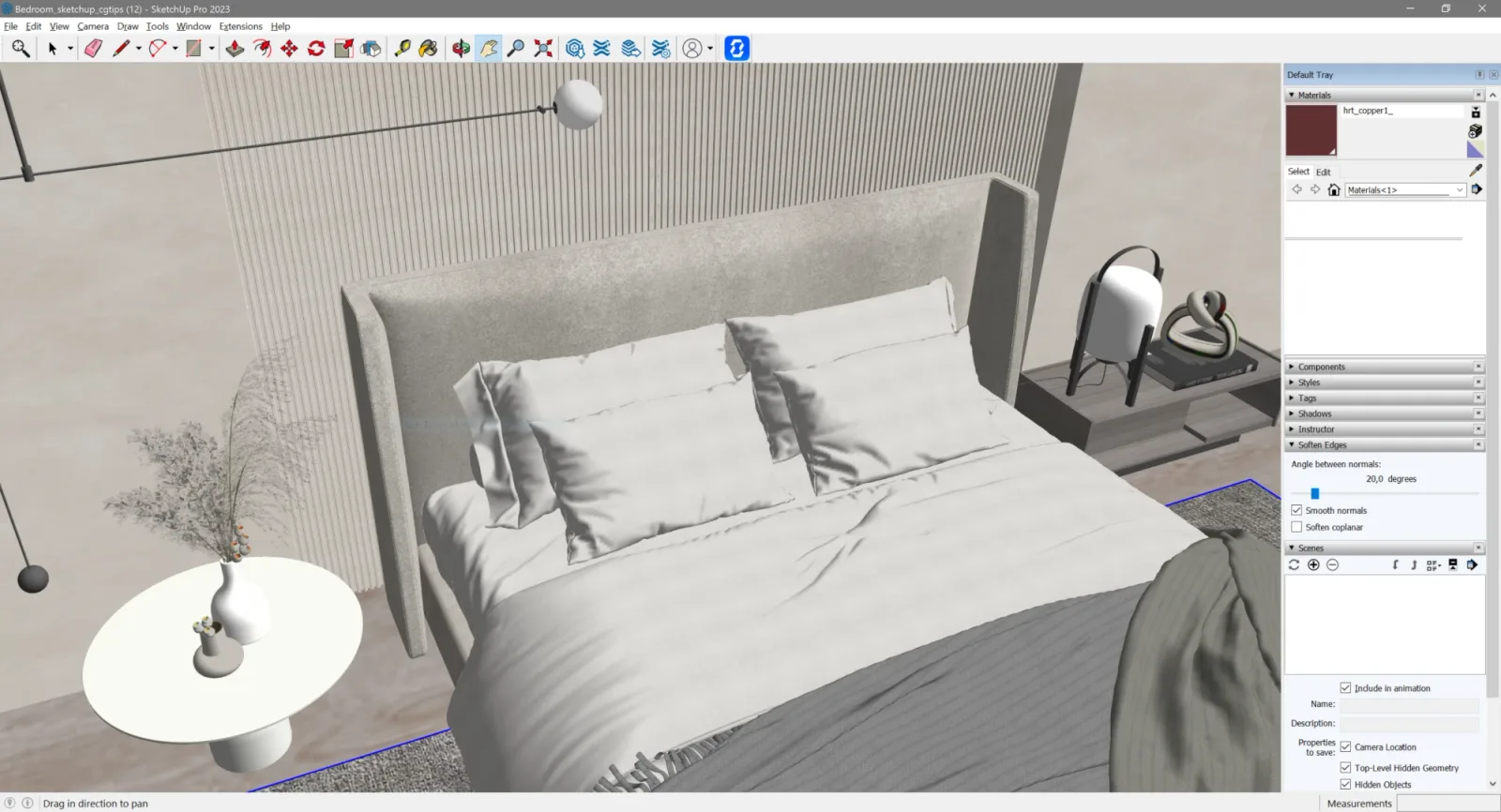 The viewport the extension captured
Your scene stays in SketchUp
Your model file never leaves your computer — the plugin only sends your active view's image and your brief to Syntina.
One .rbz install
Installs through Extension Manager; the same file works on Windows and macOS, no extra render engine or GPU investment required.
From active view to presentation frame
You set the frame in SketchUp; material, lighting and atmosphere variations on that same frame arrive within minutes.
Example Outputs
Sample frames from this workflow.
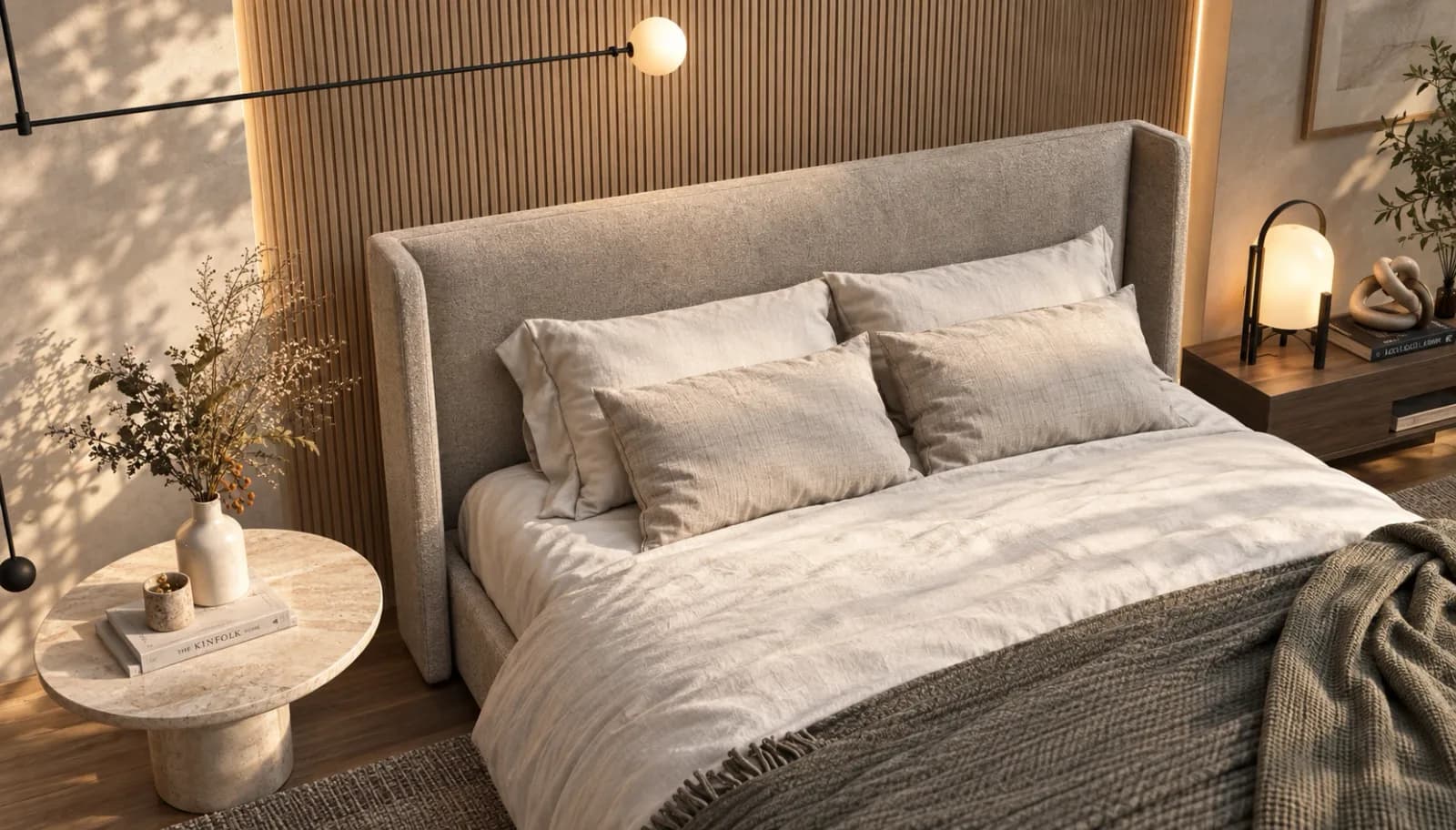
Left: the SketchUp Pro 2023 viewport. Right: the render the extension returned. The bed, pillows, side table, lamps and camera angle are kept; the grey wall slats were read as timber, and the books, wall art and plant are not in the model. The model makes every decision you leave open.
The extension panel inside SketchUpThe viewport the extension capturedThe resultHow It Works
From brief to output in three steps.
- 01
Set up the view
Prepare your scene and camera in SketchUp; the plugin panel captures the active view for you.
Input: SketchUp active view image (captured automatically by the plugin), Camera angle and scene composition, Reference style images, Short project brief
- 02
Send it from the panel
Pick a preset, references and brief from the plugin panel; the image reaches Syntina without leaving SketchUp.
- 03
Get the render
The render is produced in Syntina; download the finished output and bring the strongest frames into your presentation.
Output: AI-assisted architectural render variations, Material and lighting alternatives for the same frame, Images ready for presentations and proposal files
Scenarios
Where it's used in the field.
- Facade variations for SketchUp residential and villa projects
- Interior material and style alternatives
- Fast concept frames before a client presentation
FAQ
Frequently asked questions
- Does the plugin change my existing SketchUp scene?
- No. Your model file stays local and the plugin doesn't touch the scene — only your active view's image and brief are sent to Syntina, and the render is produced in the cloud.
- Which SketchUp versions are supported?
- SketchUp 2017 and later (any version that supports HtmlDialog). The plugin installs as a single .rbz file through Extension Manager, and the same file works on both Windows and macOS.
- How is it different from plugins like SketchUp Diffusion or Veras?
- Syntina renders in the cloud, not on your local machine. The same model catalog, presets and credit balance from the web app are shared with the plugin — your hardware doesn't affect the result, and you don't need to update the plugin for new models.