






Plugins

Keep your scene, add an AI production layer on top.

Syntina's plugin workflows are built to produce faster variations without breaking your existing modeling and visualization habits.

Teams producing with Syntina

AutobanHouse of GeoEnneGCP
Ersa
Faar
Umadina
Uslu Arch
YET
Yoo
Burēau
Studio86
AutobanHouse of GeoEnneGCP
Ersa
Faar
Umadina
Uslu Arch
YET
Yoo
Burēau
Studio86
3ds Max AI render plugin interface flowPlugin interface

Video walkthrough: install, capture the viewport, get the render.

3ds Max AI Render Plugin

Your scene stays in 3ds Max. Variations come from Syntina.

Send the viewport capture, a reference and a short brief straight from the plugin — get material and lighting variations without an export/import round trip.

  • Your pipeline stays intact. Your scene, camera and material setup stay exactly as they are — the plugin only carries the frame and the brief.
  • Dozens of takes from one frame. With the camera locked, compare material, lighting and atmosphere alternatives within minutes.
  • Solves the mid-project presentation gap. Bring strong interim frames to a client meeting without waiting on the final render queue.

How it works

  1. 1Pick a frame
  2. 2Send it from the plugin
  3. 3Review the results
Blender AI render add-on working flowAdd-on flow

Blender AI Render Add-on

From the Blender viewport to a presentation set, no export chain.

Send the scene capture, references and a brief from the add-on — produce concept, interior and exterior variations without leaving Blender.

  • The add-on doesn't pull you out of the scene. You send the frame from inside Blender — no exporting a file to another tool.
  • One flow from concept to facade. Interior, exterior and mood experiments all move through the same add-on flow.
  • A strong frame from an early scene. Even a rough blockout-stage scene can produce direction-setting concept frames.

How it works

  1. 1Frame the shot
  2. 2Send it via the add-on
  3. 3Use the set
SketchUp AI render plugin production flowPlugin flow

SketchUp AI Render Plugin

Your scene stays in SketchUp. The render is produced in Syntina.

Send the active view, references and a short brief from the plugin panel — material, lighting and atmosphere variations arrive without leaving SketchUp.

  • Your scene stays in SketchUp. Your model file never leaves your computer — the plugin only sends your active view's image and your brief to Syntina.
  • One .rbz install. Installs through Extension Manager; the same file works on Windows and macOS, no extra render engine or GPU investment required.
  • From active view to presentation frame. You set the frame in SketchUp; material, lighting and atmosphere variations on that same frame arrive within minutes.

How it works

  1. 1Set up the view
  2. 2Send it from the panel
  3. 3Get the render

From your scene to motion

Don't stop at the still.

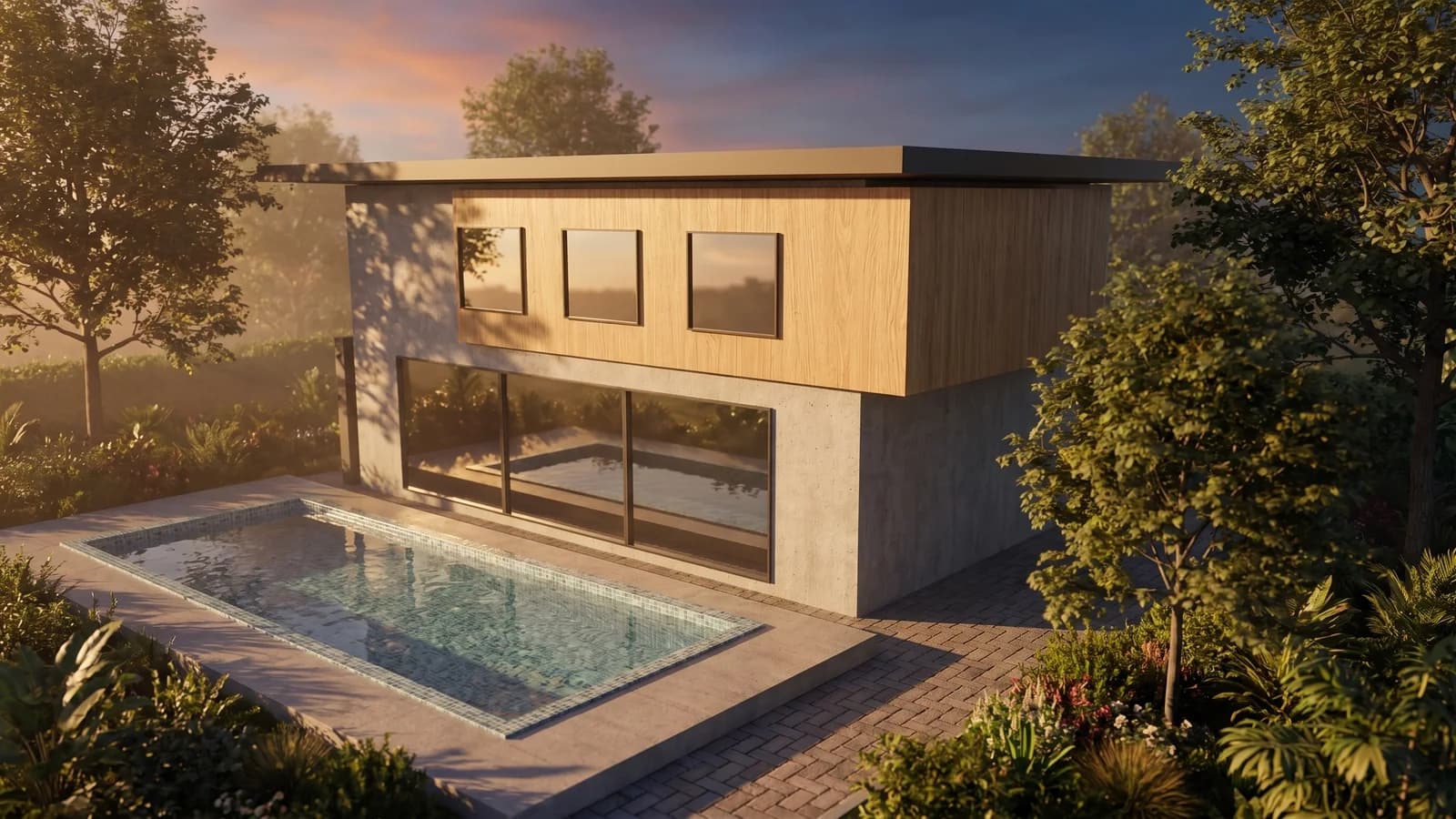
The frames you render through a plugin drop into the same pipeline as everything else — one click turns them into drone shots, orbits or timelapses.

Syntina AI hero video posteri

Drone Shot

A rising drone-camera clip from a single frame.

Syntina AI hero video posteri

Orbit

A camera orbiting around the building.

Syntina AI hero video posteri

Timelapse

Adds day-flow and people movement to the space.

Every preset is documented with before/after pairs in the preset catalog.