
Syntina for iOS
The AI render and interior design app for iPhone.
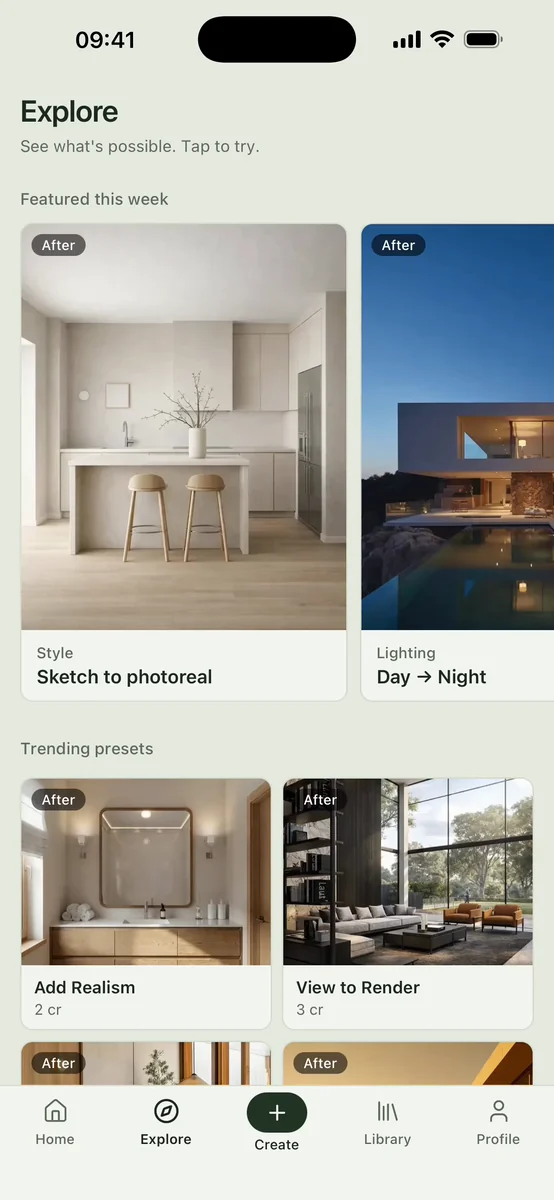
The Syntina iOS app turns a sketch, a floor plan or a room photo into a photorealistic render, a short video or a new style. Your web account, credits and history are the same in the app, so you pick up where you left off: next to the client, on site or on the road.

On a computer? Scan with your phone's camera.
- Price
- Free download, in-app purchases
- Compatibility
- iPhone, iOS 15.1 or later
- Languages
- English and Turkish interface
- Account
- Same account and credits as the web
Inside the app
Seven screens, the whole studio.
Every screen on this page was captured from the app itself. For each one we explain what it does and how to get the best result.
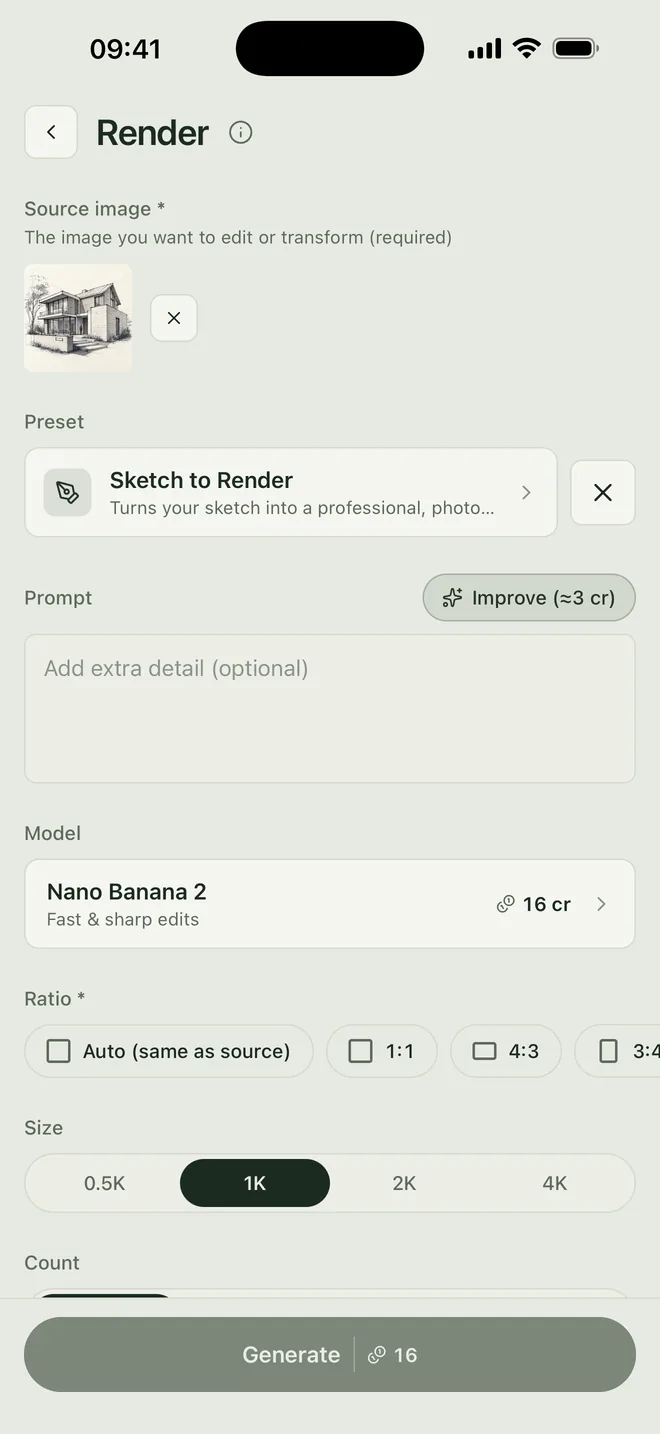
01 / Render
From sketch to render.
Pick a source image from your library or take a photo, choose a preset, set the aspect ratio and size, then tap Generate. The Sketch to Render preset stays true to the massing and proportions of your drawing and fills in materials, light and context.
TipClean lines and correct perspective give the most faithful result. Shoot paper sketches in daylight, square to the page, without casting a shadow.
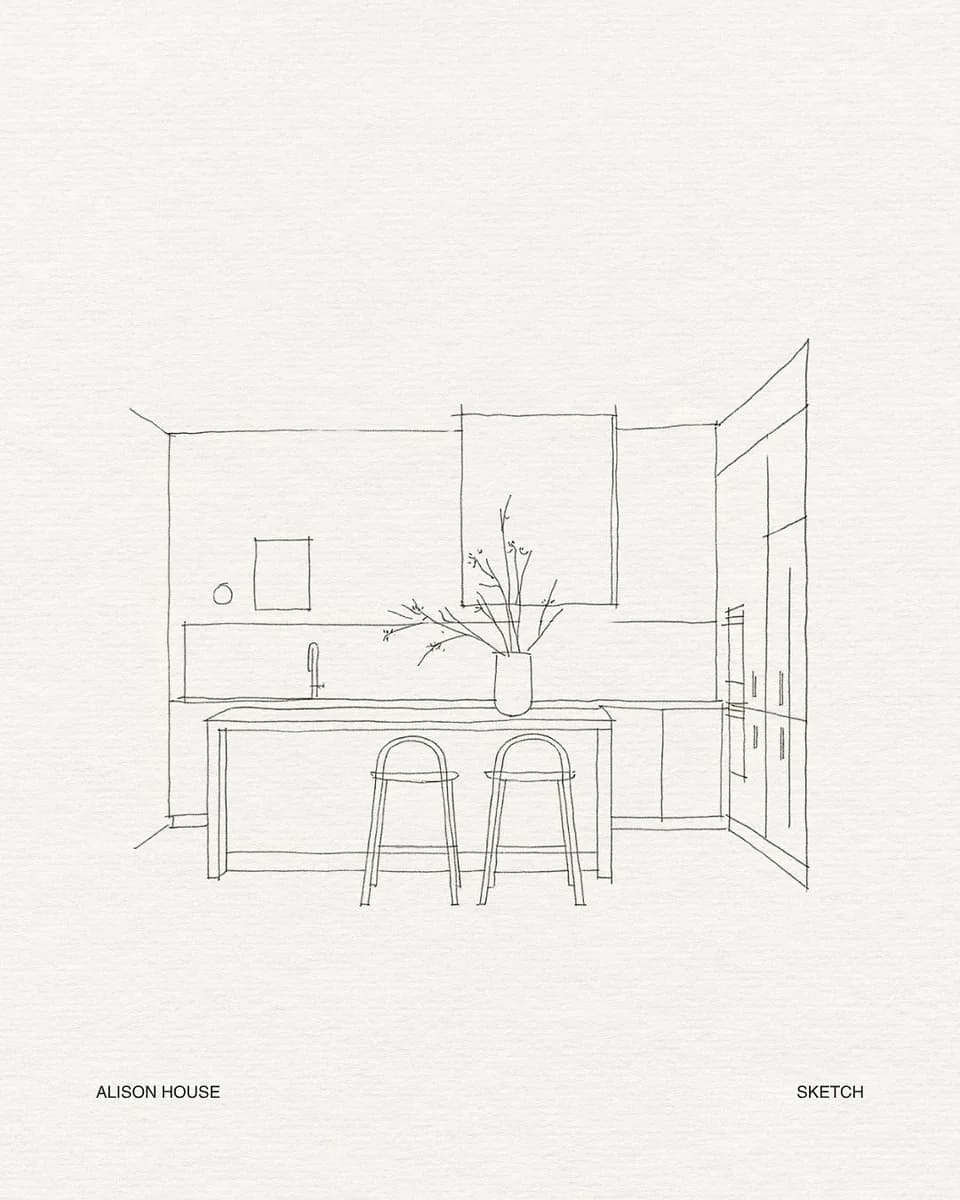
Input: paper sketch 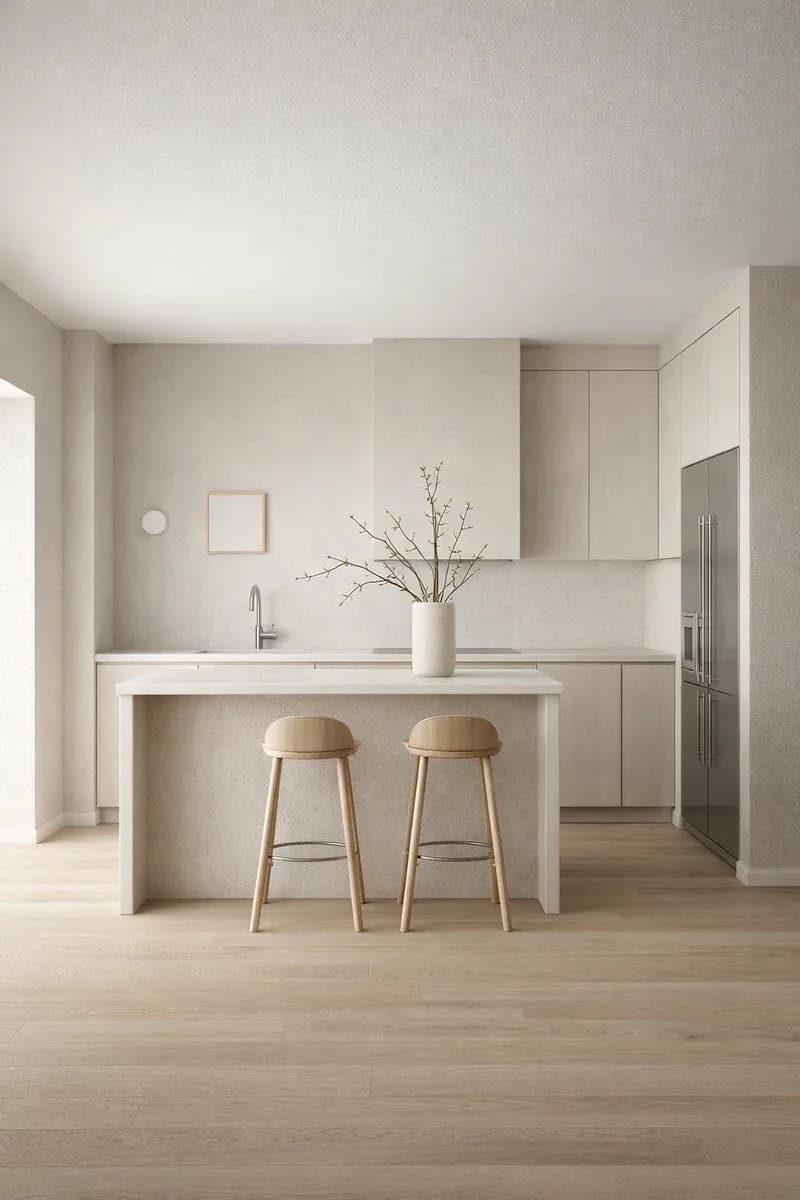
Output: Syntina render 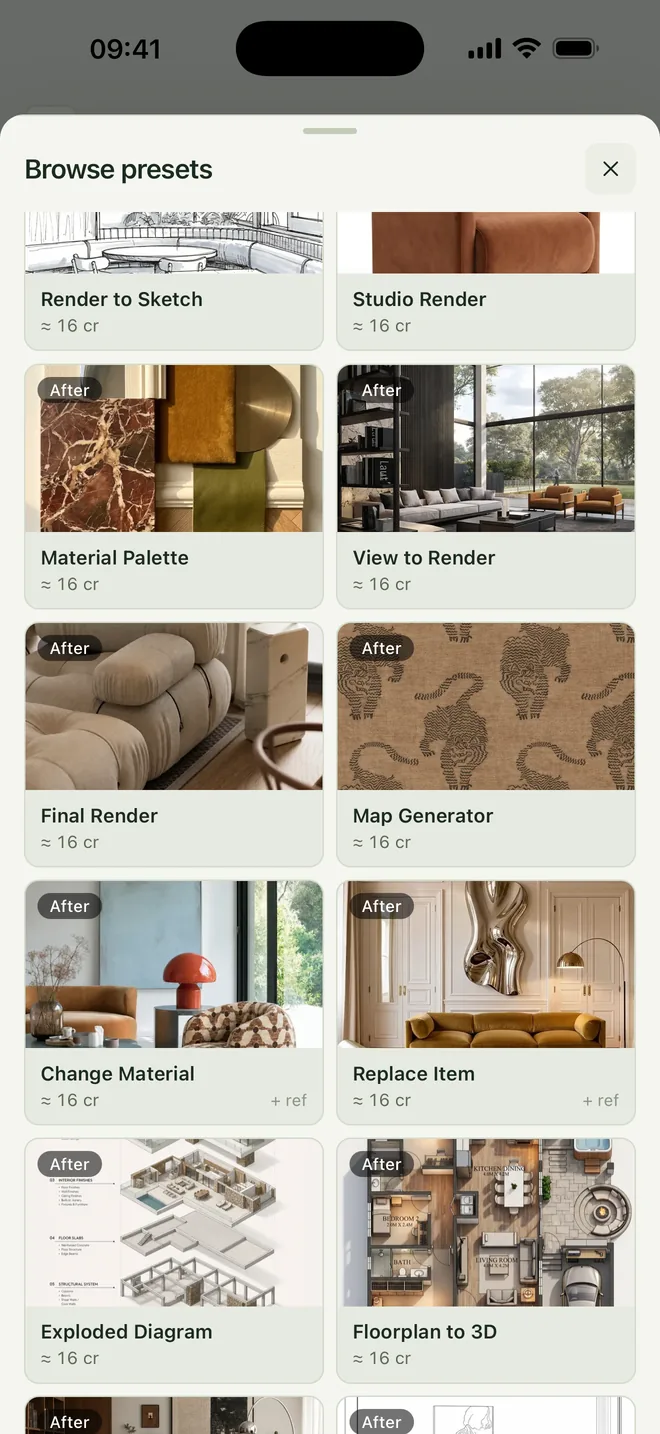
02 / Presets
Ready-made workflows, one tap.
Change Material, Replace Item, Floorplan to 3D, Exploded Diagram, Map Generator. Each preset is a tested set of instructions: you supply the image, no prompt needed. The card shows how many credits it will use.
TipFor Floorplan to 3D, use a plan with clear walls and legible labels. The result is a presentation image, not a dimensioned drawing.
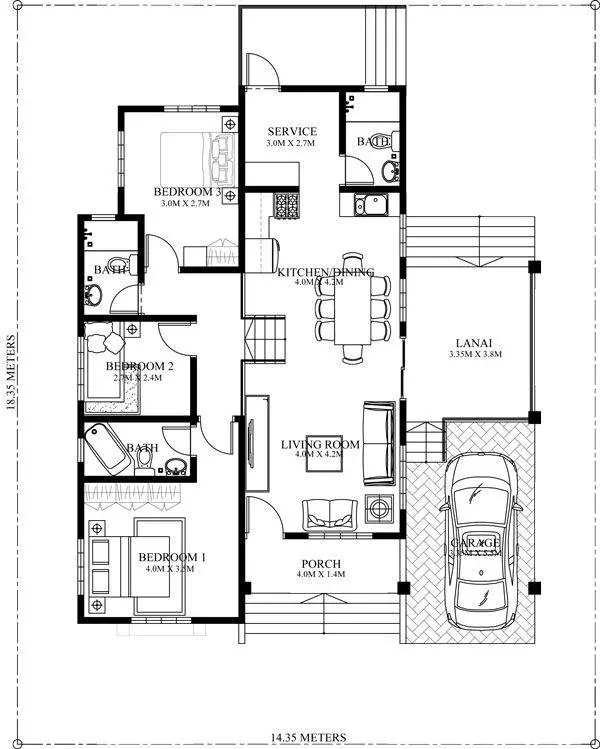
Input: 2D floor plan 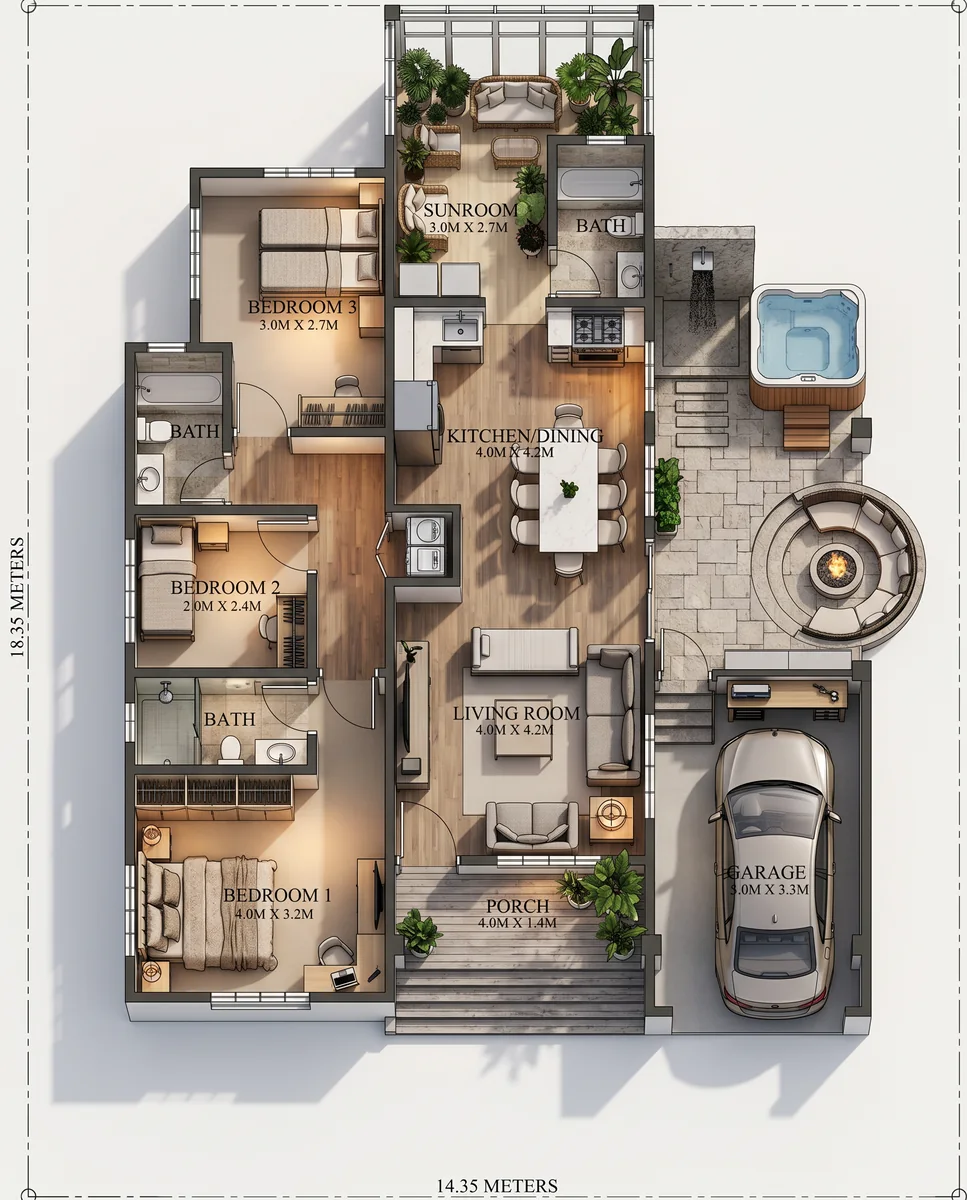
Output: Floorplan to 3D 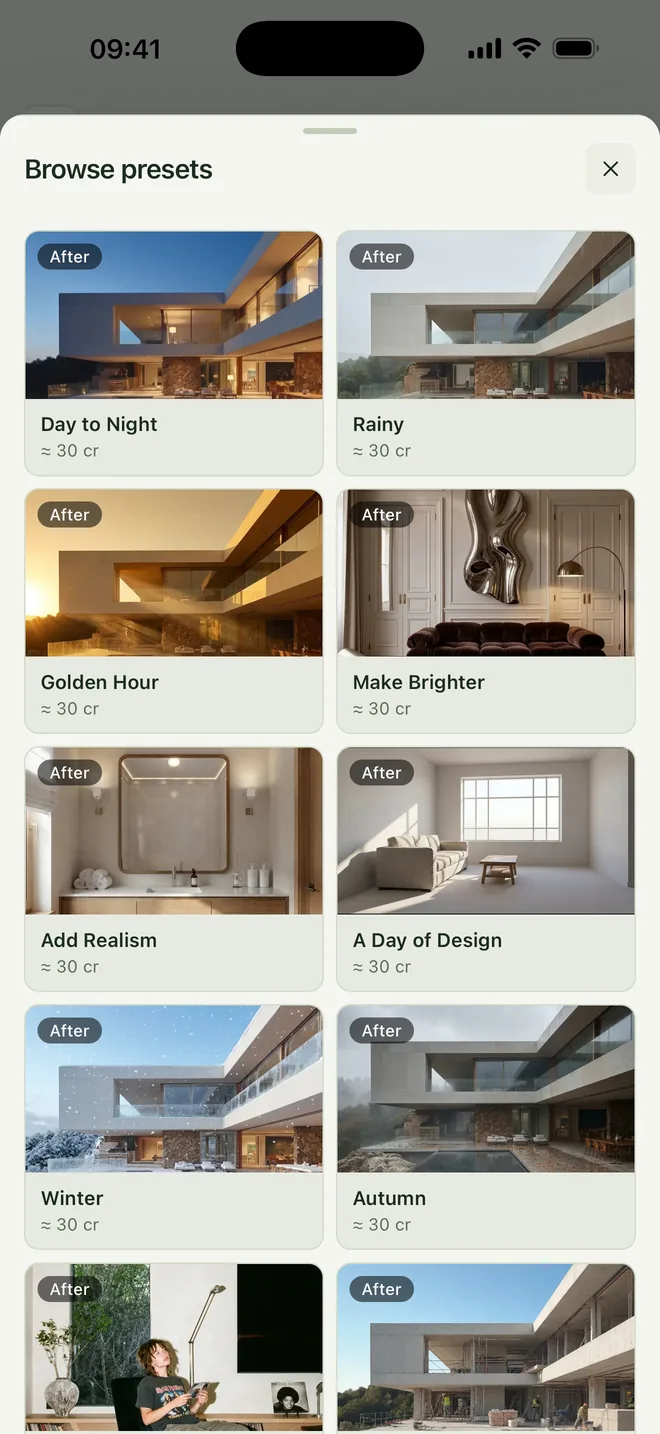
03 / Atmosphere
One building, every light.
Day to Night, Golden Hour, Rainy, Winter, Autumn. Get lighting and season options for a presentation from a single render. Massing and framing stay the same; only the atmosphere changes.

Input: daytime 
Output: Day to Night 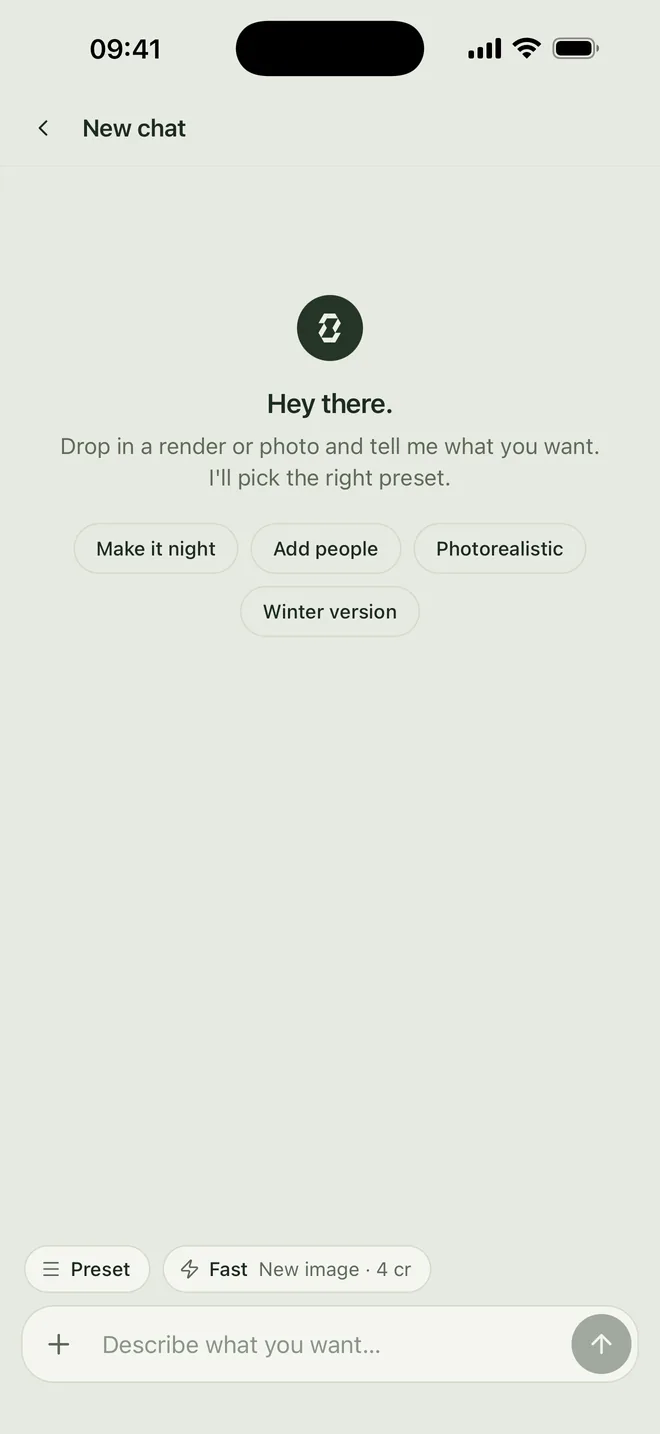
04 / Chat
Describe it, Syntina does it.
Drop in an image and say what you want: “Make the sofa in this room dark green velvet; don't touch anything else.” Syntina picks the right preset, edits the image and suggests next steps.
TipSay what should stay the same, too. A line like “don't touch anything else” helps keep the rest of the room as it is.
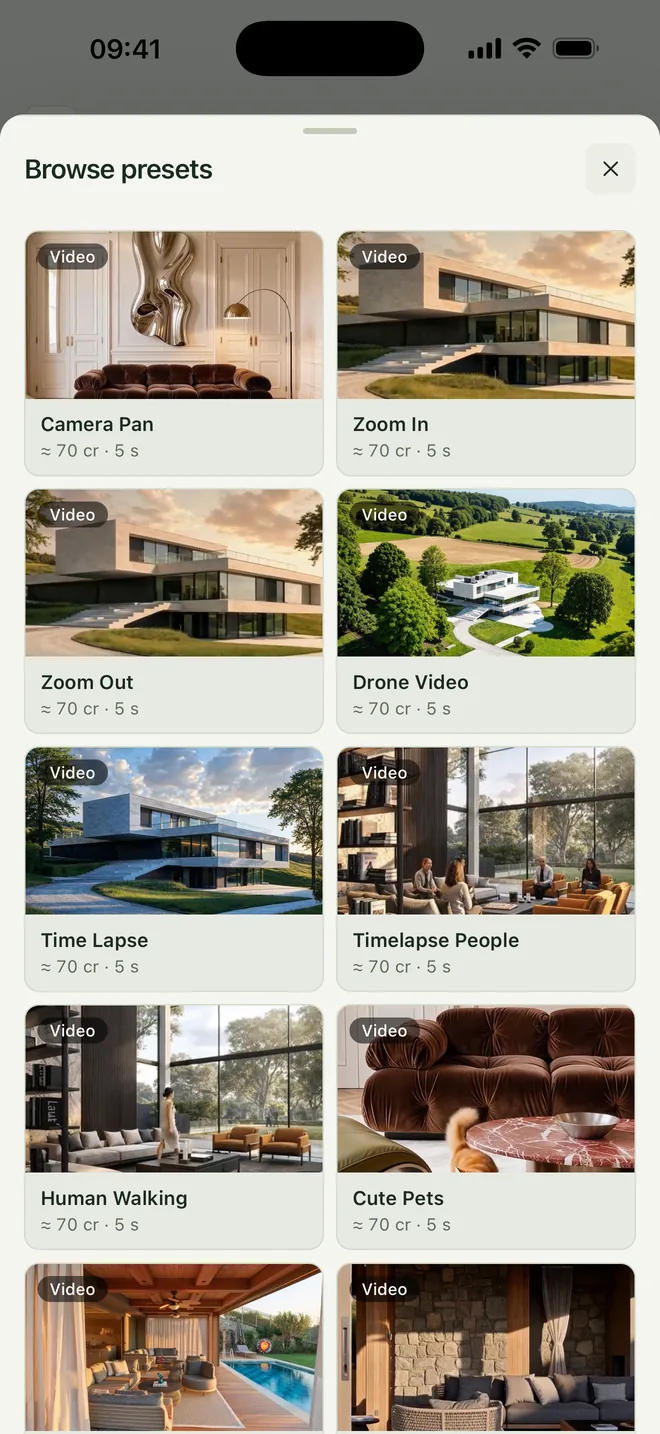
05 / Video
Take a render into motion.
Camera Pan, Zoom In, Zoom Out, Drone Video, Time Lapse. Turn a still render into a short film for a presentation or social media. Each card shows the duration and credits.
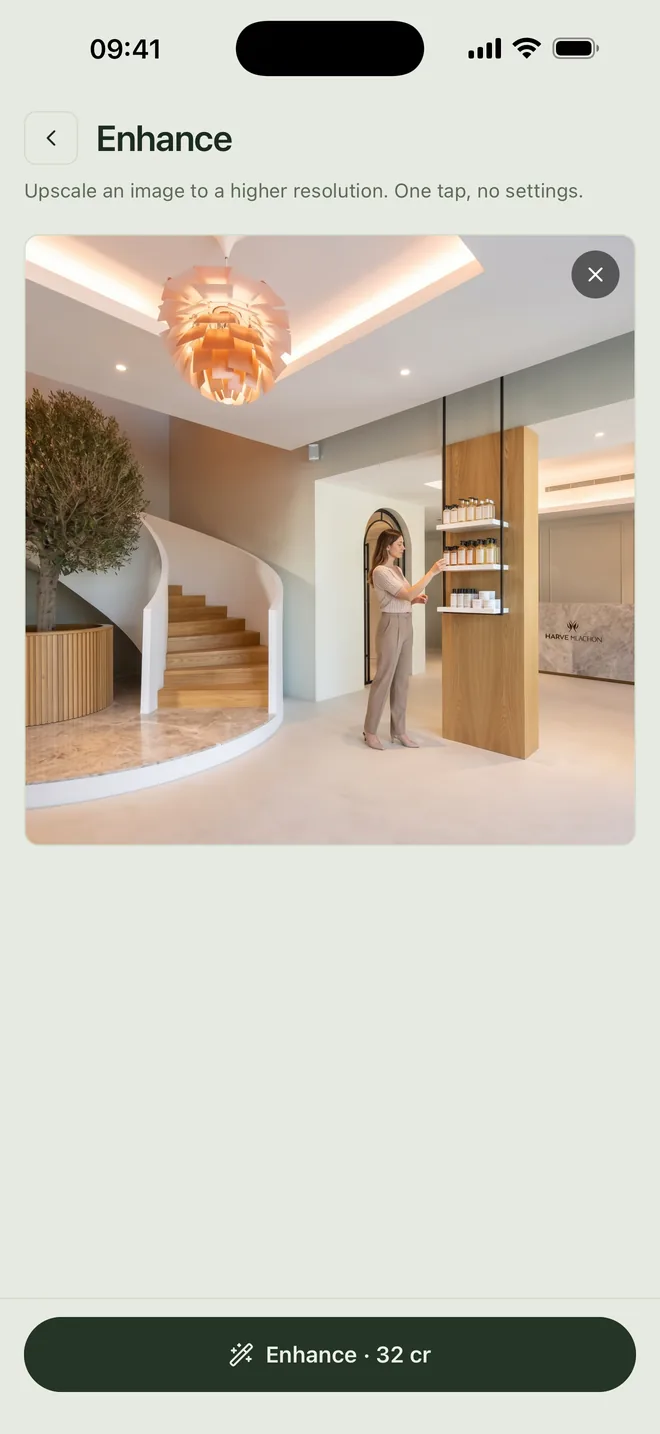
06 / Enhance
Upscale low resolution.
Bring an old project photo or a small reference image to a higher resolution with one tap. No settings: pick the image and start.

Input: low resolution 
Output: Enhance 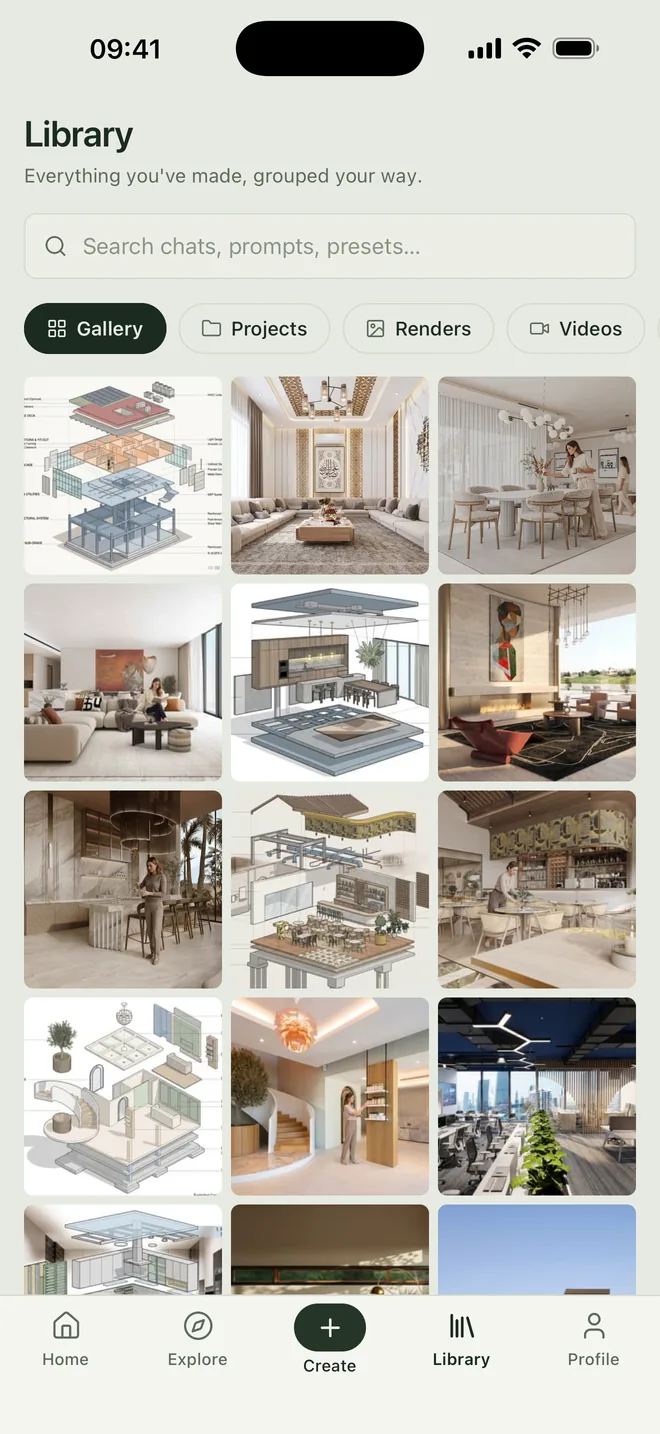
07 / Library
Everything in one place.
Renders, videos, chats and projects live in one searchable library. Sign in on the web with the same account and what you made on your phone is in your history too, so you can carry on at your desk.
In the field
For when your laptop isn't there.
The app earns its place away from the desk. Three typical uses, with the steps for each:
01
In a client meeting
When the client asks “What if this wall were timber?”, show the answer right there. The decision happens in the meeting instead of waiting for a revision email.
- 1.Photograph the space with the in-app camera.
- 2.Choose Change Material, or type the request in Chat.
- 3.Show the options on screen and keep the favourite in your library.
02
On a site visit
An empty flat, a shell-and-core floor or a facade due for renovation. Turn the photo into a finished-look proposal and share it with the team or the investor.
- 1.Photograph the area wide and level.
- 2.Choose the View to Render or Final Render preset.
- 3.Add day and night options with the atmosphere presets.
03
From your sketchbook
A perspective drawn on paper becomes a presentable frame before you are back at your desk, and the idea reaches the client while it's still fresh.
- 1.Shoot the sketch in daylight, square to the page.
- 2.Choose Sketch to Render and add materials if needed.
- 3.Turn the frame you like into a short film with the video presets.
iPhone or web?
Which job fits where?
Both use the same account and the same credit balance. The app is for quick generation and work in the field; the web is for multi-step workflows, 3D and plugins.
| Feature | iPhone app | Web app |
|---|---|---|
| Render presets (sketch, plan, material, atmosphere) | Yes | Yes |
| Video generation | Yes | Yes |
| Editing by chat | Yes | Yes |
| Enhance and upscale | Yes | Yes |
| Shoot with the camera and generate directly | Yes | By uploading a file |
| Node-based canvas (multi-step workflows) | No | Yes |
| 3D model generation | No | Yes |
| SketchUp, 3ds Max and Blender plugins | No | Yes |
| Payment | Through the App Store | By card on the web |
FAQ
Frequently asked questions
- Is the Syntina iOS app free?
- It's free to download. Generations run on credits, and new accounts get trial credits. For more, you can buy a subscription or a credit pack inside the app. Every preset and model shows how many credits it will use.
- Can I sign in with my web account?
- Yes. Your credit balance and generation history are shared with the web. Use the same sign-in method you used on the web (email, Apple or Google); a different method can create a separate account.
- Which devices does it run on?
- iPhones running iOS 15.1 or later. The app is designed for iPhone; it can also be installed on iPad, but on a large screen the web app is more comfortable.
- Is there an Android app?
- Not yet; only iOS for now. On an Android phone, open app.syntina.ai in your browser and work with the same account.
- What images can I start from?
- A hand-drawn sketch, a 2D floor plan, a photo of a space, a screenshot from your 3D modelling software or a reference image. Pick one from your library or take a photo inside the app.
- What output resolution do I get?
- You choose the size on the Render screen; depending on the model, outputs go up to 4K. Size and model can change the credit cost, which is shown on the Generate button.
- What languages is the app in?
- English and Turkish. It opens in your phone's language, and you can switch it in Profile settings.
- How do payments work?
- In-app purchases go through the App Store with your Apple account, and you manage the subscription in your iPhone's App Store settings. Credits bought on the web show up in the same account.
Download
Get your next render on the go.
Download Syntina free from the App Store and sign in with your web account.