
Veras alternative for architects: when Syntina fits, when it doesn't
Veras, from EvolveLAB, is an AI rendering add-in for Revit, SketchUp, Rhino, Vectorworks and Archicad (plus a web app) that restyles your 3D view with text prompts. Syntina is also AI — the closest comparison on this page. Here's an honest, feature-level look, with no claim about image quality either way.
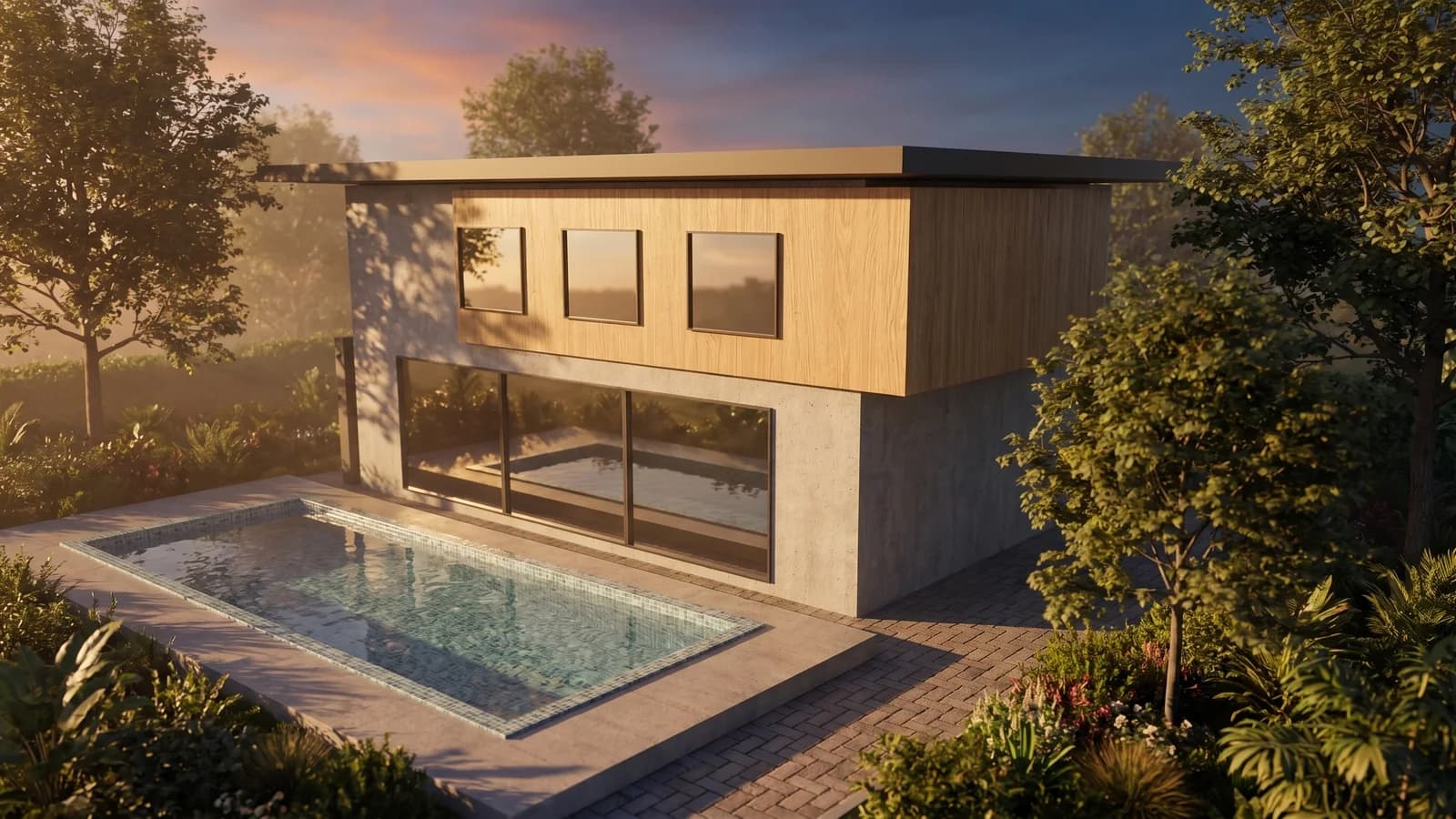 Syntina output — Blender, single attempt
 Model, panel and result on one screen
 Panel: account, scene, preset, credit estimate
A standalone web canvas with a layer editor
Syntina isn't only a CAD add-in — the web canvas lets you keep editing and layering a generation after it's made, without a Revit or Rhino license open.
Starts without any 3D model at all
A sketch, a photo, or a 2D plan works as input on its own — you don't need a 3D view to restyle in the first place.
A 39-preset library, plus a 3ds Max and Blender plugin
Beyond prompt writing, Syntina offers named presets across style, lighting, view, elements, effects and merge — and plugin coverage that includes 3ds Max and Blender.
Who It's For
Veras or Syntina? Both are AI — the difference is in the platform, not a quality claim.
Veras, from EvolveLAB, is a diffusion-based AI rendering add-in for Revit, SketchUp, Rhino, Vectorworks and Archicad, plus a web app. It uses your current 3D view as a base and a text prompt to restyle it, without leaving your CAD software. For a team that lives inside Revit or Rhino and wants an AI pass on the active view without switching context, that in-app workflow is a genuine convenience — and this page makes no claim that Syntina's image quality is better. It's worth comparing the two side by side on your own project and judging the output yourself.
Where the two differ is platform and input. Syntina is a standalone, browser-based canvas with a layer editor, so a generation isn't a one-shot replace of your view — you can keep layering, adjusting, and regenerating parts of the image after the fact. It also doesn't require a 3D view to begin with: a sketch, a photo, or a flat 2D plan is enough input on its own, which matters at the concept stage before a model exists. And beyond Revit/SketchUp/Rhino-family coverage, Syntina has a plugin for 3ds Max and one for Blender too, plus an iOS app and a library of 39 named presets instead of prompt-only control.
In short: if you live inside Revit, Rhino, SketchUp, Vectorworks or Archicad and want an AI pass without leaving the viewport, Veras's in-app workflow is built for exactly that. If you want a browser canvas you can keep editing after generating, you're starting from a sketch or photo with no 3D view at all, or you're on 3ds Max or Blender, Syntina covers that ground.
Example Outputs
Sample frames from this workflow.
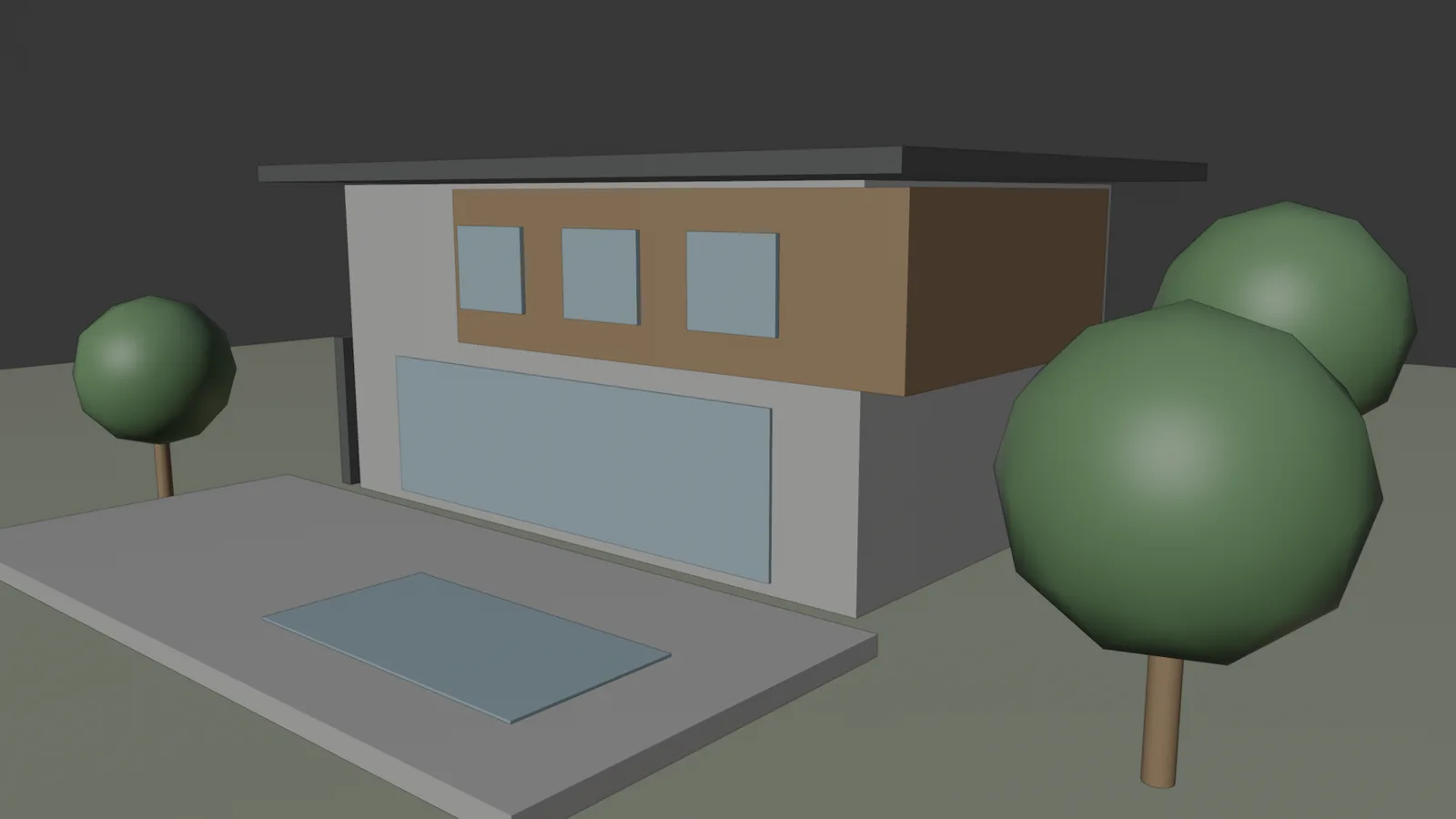
This is not a Veras output — it's Syntina's own result; since both tools are AI-based, we'd rather you compare quality on your own project than take our word for it. Left: the viewport as captured by the add-on (2048 px). Right: the View to Render preset, one attempt; brief: "warm late-afternoon light, light oak cladding, lush garden". Camera, massing and pool position are preserved.
Model, panel and result on one screenPanel: account, scene, preset, credit estimate Model settings and result
How It Works
From brief to output in three steps.
- 01
Upload your input
Upload a sketch, photo, plan, or a 3D viewport capture from your browser, or send it directly from the SketchUp, 3ds Max, or Blender plugin.
Input: Sketch, photo, or 2D plan, A 3D viewport capture or existing render, if you have one, Reference style images, A short project brief
- 02
Pick a preset or write a prompt
Use one of 39 named presets (View to Render, Golden Hour, Change Material, Add Realism, and more) or describe the change yourself.
- 03
Keep editing on the canvas
Layer, adjust, and regenerate parts of the image on Syntina's web canvas before exporting the frame you need.
Output: Presentation-quality interior and exterior stills, 3D floor plan and concept images, A 3D model (GLB) generated from a single image
In Depth
Veras vs. Syntina, in four questions
In-app add-in, or a standalone web canvas?
Veras works as an add-in inside your CAD application (or its own web app), restyling the active 3D view without you leaving that context.
Syntina is a standalone web canvas with a layer editor — a generation is a starting point you can keep adjusting, not a single replace-and-done pass.
Does the input have to be a 3D view?
Veras restyles your current 3D view, so you need a model and a camera set up in a supported host application first.
Syntina accepts a sketch, a photo, or a 2D plan on its own — no 3D view required to begin, which matters earlier in a project.
Prompt-only, or a preset library too?
Veras is driven by text prompts against your view.
Syntina offers 39 named presets across style, lighting, view, elements, effects and merge — things like View to Render, Golden Hour, Day to Night, and Change Material — alongside free-text prompts, for teams who'd rather pick a named option than write one.
Plugin and platform coverage
Veras covers Revit, SketchUp, Rhino, Vectorworks and Archicad, plus a web app.
Syntina's plugin coverage includes SketchUp, 3ds Max and Blender, alongside the web canvas and an iOS app — worth checking directly if your team's primary tool is 3ds Max or Blender.
Prompt Patterns
Copy, paste, try it.
Pattern 1 — Already using Veras inside Revit
You're restyling views inside Revit with Veras and want to try the same frame on Syntina's layer-editable web canvas for a revision.
Using this 3D view, apply the View to Render preset with warm afternoon light, light oak interior flooring, and a matte plaster ceiling. Keep the camera angle, furniture layout and window positions exactly as shown.
A useful side-by-side test on the same view before deciding which fits a given revision round better.
Pattern 2 — Starting from a sketch, no 3D view yet
You don't have a model or a 3D view set up at all — just a hand sketch you want turned into a presentable image.
Convert this architectural sketch into a photorealistic exterior render, preserving its massing, proportions and design intent; don't reinterpret the design. Apply realistic materials, afternoon light, and a natural surrounding landscape.
This is earlier than an in-viewport add-in can help — there's no 3D view to restyle yet.
Pattern 3 — On 3ds Max or Blender instead of Revit
Your team works in 3ds Max or Blender rather than the Revit/SketchUp/Rhino family Veras covers, and you want the same kind of AI pass on a viewport capture.
Using this 3ds Max viewport capture, apply realistic material and lighting: warm directional daylight, soft shadows, and natural material texture on all visible surfaces. Keep the camera angle and object positions unchanged.
Syntina's 3ds Max and Blender plugins send the active viewport directly, the same way the SketchUp plugin does.
Comparison
Veras and Syntina AI, side by side
Both tools are AI-based, so this table compares features and platform coverage, not image quality — that's worth judging on your own project. It does not include Veras's price list, since subscription terms change over time — check EvolveLAB for current pricing.
| Criterion | Veras | Syntina AI |
|---|---|---|
| Working environment | Add-in inside Revit, SketchUp, Rhino, Vectorworks or Archicad, plus a web app | Standalone web canvas with a layer editor, plus SketchUp/3ds Max/Blender plugins |
| Starting input | An active 3D view in a supported host application | Sketch, photo, plan, or 3D viewport capture — no model required |
| Control method | Text prompts against the active view | 39 named presets (style, lighting, view, elements, effects, merge) or free-text prompts |
| Editing after generation | Restyles the view; further edits go through another pass | Layer editor for adjusting and regenerating parts of the image |
| Plugin/platform coverage | Revit, SketchUp, Rhino, Vectorworks, Archicad, web app | SketchUp, 3ds Max, Blender plugins, web canvas, iOS app |
| Time to first image | About a minute, once a 3D view is set up | About a minute, with or without a 3D model |
| What it's best at | Staying inside your CAD viewport for a fast AI restyle | A flexible input range (no model needed) plus post-generation layer editing |
| Pricing model | Paid subscription (check EvolveLAB for current pricing) | Credit-based, from $19/month (Starter), Pro $45, Business $99 |
Scenarios
Where it's used in the field.
- Teams who want a browser-based canvas and layer editor, not only an in-app add-in
- Projects that start from a sketch, photo, or plan with no 3D model at all
- 3ds Max or Blender users who want the same AI workflow Revit/SketchUp/Rhino teams get with Veras
Final Check
Is Syntina right for you?
- You want to keep editing a generation afterward, not just replace the view once.
Syntina's web canvas has a layer editor for adjusting and regenerating parts of an image.
- You don't have a 3D view set up — just a sketch, photo, or plan.
Syntina accepts these directly; Veras restyles an existing 3D view.
- Your team works in 3ds Max or Blender, not the Revit/SketchUp/Rhino family.
Syntina has plugins for both, alongside SketchUp.
- You'd rather pick from a named preset library than write every prompt from scratch.
39 presets cover style, lighting, view, elements, effects and merge.
- You want to compare output quality on your own project before deciding.
Both tools are AI-based — the honest move is testing the same input on both.
FAQ
Frequently asked questions
- Should I choose Veras or Syntina?
- Both are AI rendering tools, so this comes down to workflow fit, not a quality claim from us. If you live inside Revit, Rhino or SketchUp and want to stay in that viewport, Veras's add-in is convenient. If you want a browser canvas you can keep editing, need to start without a 3D view, or work in 3ds Max or Blender, Syntina covers that.
- Can I use Syntina together with Veras?
- Yes. Some teams use Veras for quick in-viewport passes inside Revit or Rhino and use Syntina's web canvas for layered edits, sketch/photo-stage concepts, or 3ds Max and Blender work — there's no conflict running both.
- Is Syntina a replacement for Veras?
- Not necessarily — it depends on your workflow. If staying inside your CAD viewport for every pass matters most to your team, Veras's add-in model fits that directly. Syntina is the better fit if you want a standalone editable canvas or need to start from a sketch or photo with no 3D view.
- Is Syntina's image quality better than Veras?
- We're not claiming that, and you shouldn't take an AI vendor's word for it either way — test the same input on both and judge the result on your own project.
- Does Syntina work with Revit like Veras does?
- Syntina doesn't currently have a Revit add-in; it has plugins for SketchUp, 3ds Max and Blender, plus the web canvas, which accepts a Revit viewport screenshot as an input image.
- Can I try Syntina for free?
- Yes. You get free credits when you sign up and can move to a paid plan whenever you need more.
Test the same input on both, then decide
Both Veras and Syntina are AI rendering tools — the honest comparison is running your own sketch, photo, or view through each one and judging the result yourself, not taking either vendor's word for it.
Sign up with free credits and try Syntina's preset library and layer editor on your own project.