
Lumion alternative for architects: when Syntina fits, when it doesn't
Lumion is a standalone real-time visualization app for Windows, with LiveSync links to SketchUp, Revit, Rhino, Archicad and Vectorworks and a very large built-in content library. Syntina is a browser-based AI generator with no software to install. Here's where each one actually helps.
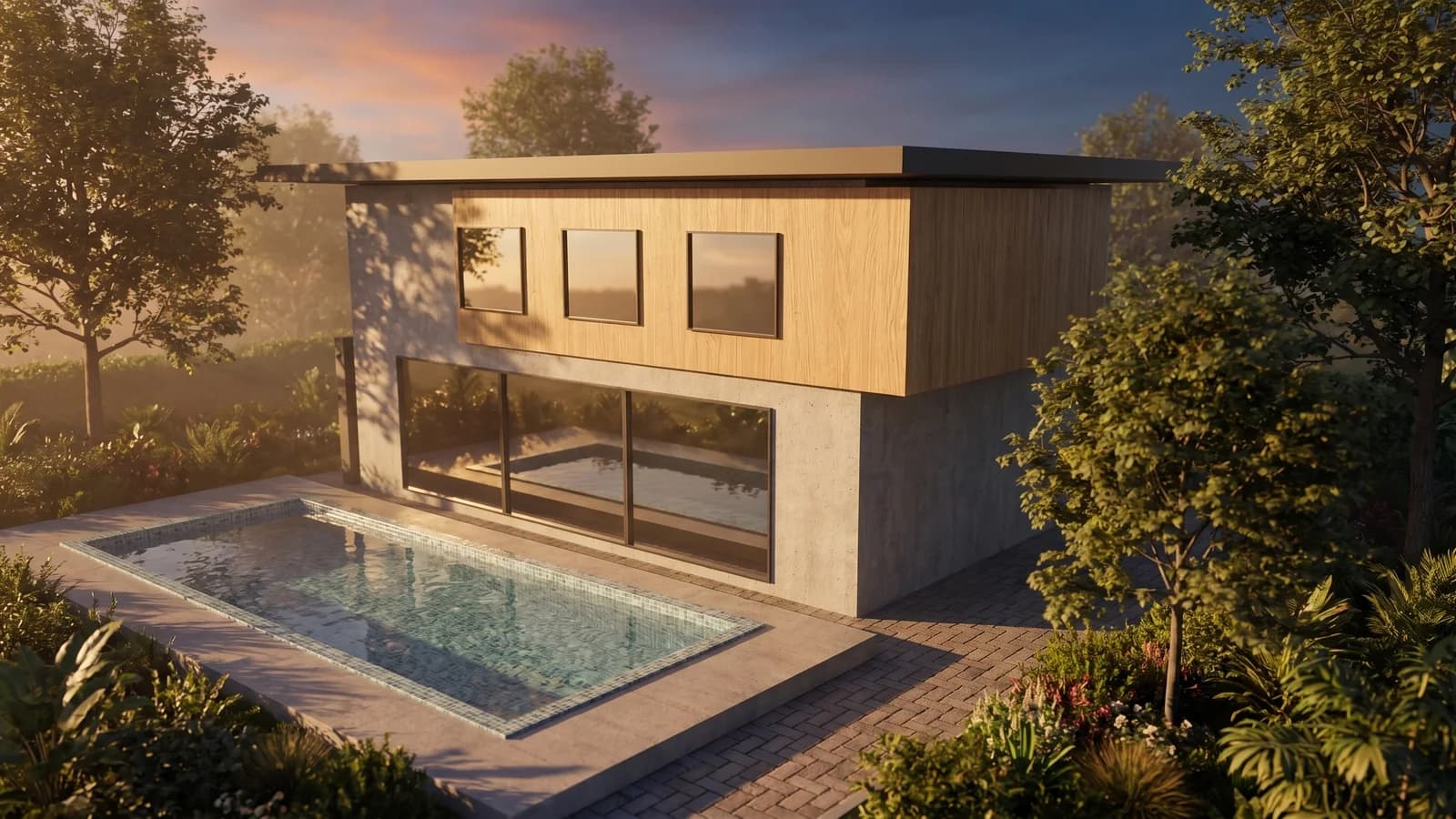 Syntina output — Blender, single attempt
 Model, panel and result on one screen
 Panel: account, scene, preset, credit estimate
No software to install or manage
Syntina is a website, not a separate application you import your model into — there's no library to download or LiveSync bridge to configure.
Starts from a sketch or photo, not an imported model
You don't need a 3D scene staged and ready; a hand sketch, a site photo, or a 2D plan is enough to get a presentable image.
Not a substitute for Lumion's library or flythrough videos
Lumion's built-in vegetation, materials and people library and animated walkthrough export stay ahead of anything Syntina offers for full-scene movies.
Who It's For
Lumion or Syntina? One is a destination app, the other is a browser tab.
Lumion is a standalone real-time visualization application for Windows. You bring your model into it — either by importing it or keeping it live with LiveSync links to SketchUp, Revit, Rhino, Archicad, Vectorworks and others — and then work inside Lumion's own library of objects, materials and vegetation, which is genuinely large. Its real-time engine also makes animated walkthrough videos straightforward to export. All of that needs a capable GPU and runs on Windows. If your model is ready and you want a rich, real-time scene with Lumion's content library behind it, that's exactly what it's for.
Syntina doesn't ask you to import anything into a separate application. It runs in the browser, needs no GPU, and generates directly from a sketch, a site photo, or a flat 2D plan — useful earlier in a project, before there's a model worth staging in Lumion at all. A generation takes about a minute, through a library of 39 presets covering interior, exterior, floor-plan, concept and renovation before/after work.
In short: once you have a model and want a rich real-time scene or an animated flythrough video, Lumion's library and engine are hard to match. Before that — or when you just need a fast still from a sketch or photo — Syntina gets you there without installing anything.
Example Outputs
Sample frames from this workflow.
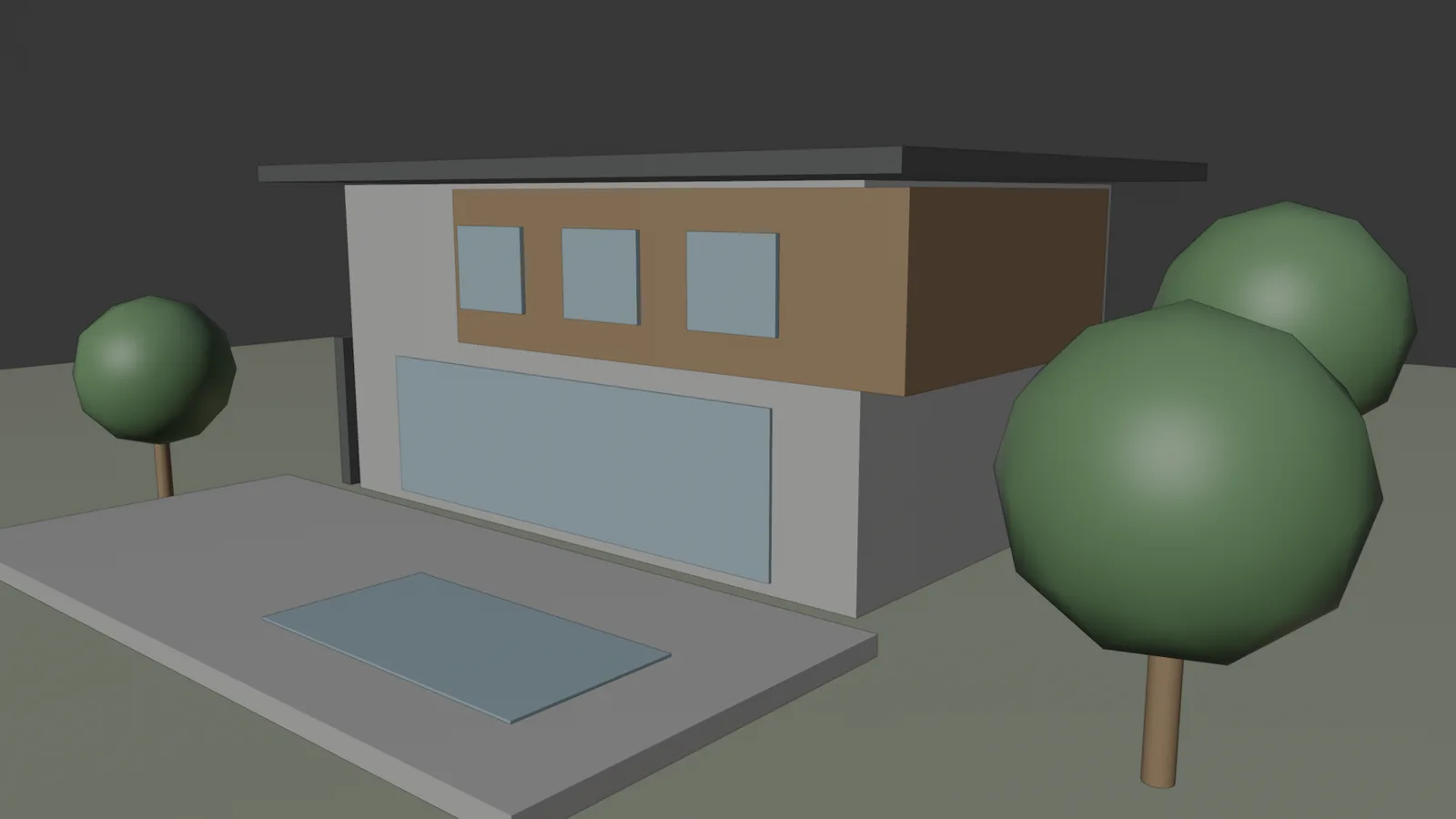
This is not a Lumion screenshot — it's Syntina's own output. Left: the viewport as captured by the add-on (2048 px). Right: the View to Render preset, one attempt; brief: "warm late-afternoon light, light oak cladding, lush garden". Camera, massing and pool position are preserved.
Model, panel and result on one screenPanel: account, scene, preset, credit estimate Model settings and result
How It Works
From brief to output in three steps.
- 01
Upload your input
Upload a sketch, photo, plan, or an exported Lumion/viewport frame from your browser — no import step into a separate application.
Input: Sketch, photo, or 2D plan, An exported Lumion frame or viewport capture, if you have one, Reference style images, A short project brief
- 02
Generate style variations
Compare material, light and landscaping mood options on the same input using Syntina's preset library.
- 03
Export the frame you need
Download the still you like at high resolution; for an animated flythrough, that stays a Lumion job once your model is ready.
Output: Presentation-quality interior and exterior stills, 3D floor plan and concept images, A 3D model (GLB) generated from a single image
In Depth
Lumion vs. Syntina, in four questions
A destination application, or a browser tab?
Lumion is separate software: you import your model or link it live with LiveSync, then build the scene inside Lumion itself, using its own material and object library.
Syntina has no separate application and no import step. You upload an image or file directly in the browser and generate from it.
Library depth vs. input flexibility
Lumion's built-in library of vegetation, materials, and people is one of its biggest strengths once a scene is staged inside it.
Syntina doesn't compete on library depth; its flexibility is on the input side — a sketch, a photo, or a plan is enough to start, with no scene-building step first.
Stills vs. animated flythroughs
Lumion's real-time engine is built for movement — animated walkthrough videos are a core, well-supported output.
Syntina generates still frames. If an animated flythrough of the finished model is the deliverable, that stays a Lumion (or similar real-time engine) job.
Hardware and where it runs
Lumion is GPU-heavy and Windows-only, so a team needs the right workstations to run it well.
Syntina runs in any modern browser, on any device, because rendering happens on Syntina's servers.
Prompt Patterns
Copy, paste, try it.
Pattern 1 — Before importing into Lumion
Your model isn't staged in Lumion yet, but you need a concept image today, from a photo of the existing site.
Using this site photo, generate a renovation concept: replace the facade cladding with light oak panels, add a new flat-roof extension in matching materials, and keep the existing surroundings, trees and street unchanged. Use late-afternoon natural light.
A fast pitch image while the model is still being modeled or staged for Lumion.
Pattern 2 — Lifting an exported Lumion frame
You have a Lumion still that needs a quick material change for a client without re-staging the scene.
Keep this frame's camera angle and composition exactly as is. Only change the facade material to a warm terracotta brick, and adjust the sky to overcast, soft daylight. Leave landscaping, people and all other elements unchanged.
Useful for a one-off variation when re-opening the Lumion scene isn't worth the time.
Pattern 3 — Landscape mood options from a plan
You want to compare a formal versus a naturalistic landscape mood before deciding what to model.
Using this 2D landscape plan, generate two versions of the same layout: (1) formal, symmetrical planting with clipped hedges, (2) naturalistic planting with mixed native species. Keep the hardscape, paths and structures identical in both.
Decide the planting direction before investing time in Lumion's landscaping library.
Comparison
Lumion and Syntina AI, side by side
This table covers Lumion's verified, publicly documented features; it does not include Lumion's price list, since subscription terms change over time — check Lumion for current pricing.
| Criterion | Lumion | Syntina AI |
|---|---|---|
| Working environment | Standalone Windows application; LiveSync links to SketchUp, Revit, Rhino, Archicad, Vectorworks and others | Web browser, no installation |
| Starting input | An existing 3D model, imported or linked live | Sketch, photo, plan, or viewport capture |
| Hardware requirement | GPU-heavy; Windows only | None — rendering happens in the cloud |
| Rendering approach | Real-time engine with a large built-in object/material/vegetation library | Cloud-based AI image generation, one frame per generation |
| Time to first image | Fast once the model is imported and staged | About a minute from a single upload, no model required |
| What it's best at | Rich built-in landscaping/material libraries and animated flythrough videos | Fast concept stills before or without a 3D model |
| What it can't do | Doesn't help before a model exists; Windows only | No animated flythrough or real-time navigation |
| Pricing model | Paid subscription (check Lumion for current pricing) | Credit-based, from $19/month (Starter), Pro $45, Business $99 |
Scenarios
Where it's used in the field.
- Quick concept stills before a model is ready to import into Lumion
- Teams without a Windows workstation or a Lumion license seat free
- Fast material or landscape mood options from a photo or plan
Final Check
Is Syntina right for you?
- You don't have a model staged for Lumion yet.
Syntina works directly from a sketch, photo, or plan — no import step.
- You're not on a Windows workstation, or don't have a Lumion seat free.
Syntina runs in any modern browser, on any device.
- You need a still image today, not an animated flythrough.
For a walkthrough video of the finished model, Lumion's real-time engine remains the stronger tool.
- You want quick material or landscape mood options before committing to a full scene build.
Generate a few directions from a photo or plan first.
- You'd rather pay for what you generate than a fixed subscription.
Plans start at $19/month; use only the credits you spend.
FAQ
Frequently asked questions
- Should I choose Lumion or Syntina?
- If your model is ready and you want a rich real-time scene or an animated flythrough, Lumion's library and engine are built for that. If you're earlier in the process, or on a machine without a strong GPU, Syntina gets you a presentable image faster.
- Can I use Syntina together with Lumion?
- Yes. A common pattern is generating quick concept and material options in Syntina before the model is even staged, then building the final real-time scene and flythrough in Lumion once the design is locked.
- Is Syntina a replacement for Lumion?
- No. Syntina doesn't produce animated flythroughs or a real-time navigable scene, and it doesn't have Lumion's built-in content library. They fit different stages and different deliverables.
- Do I need Windows or a strong GPU to use Syntina?
- No. Syntina runs in any modern browser, on any operating system, because rendering happens on Syntina's servers.
- Can I upload a Lumion still to Syntina?
- Yes. An exported Lumion frame works as an input image if you want a quick material or lighting variation without re-opening the scene.
- Can I try Syntina for free?
- Yes. You get free credits when you sign up and can move to a paid plan whenever you need more.
See which one fits your next project
If your model is ready for a rich real-time scene or a flythrough video, Lumion is the right tool. If you're still at the sketch or photo stage and want a presentable still today, try Syntina.
Sign up with free credits and generate your first image in the browser, no installation required.