
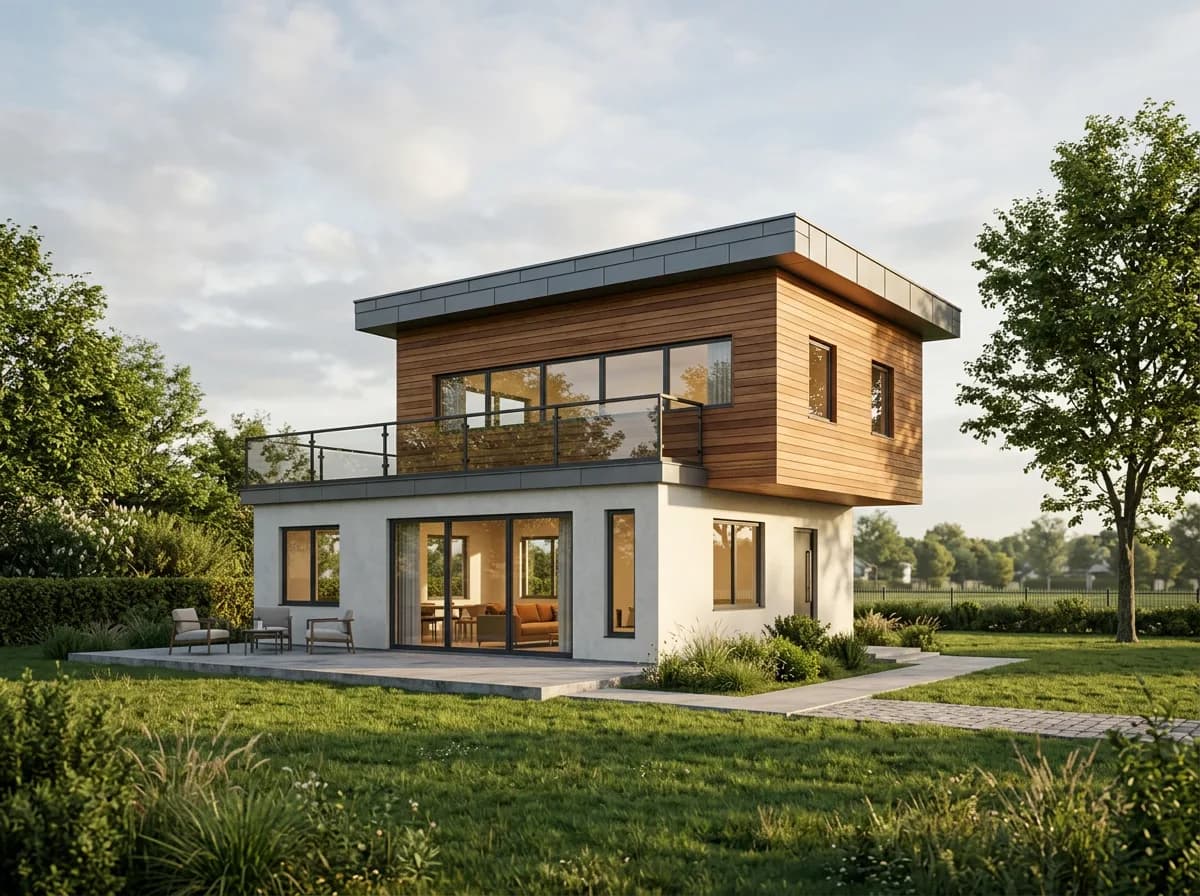
You don't have to leave Revit to render: its own Rendering dialog still runs on the Autodesk Raytracer engine. But most offices now either link a render engine or hand the view to an AI tool. In 2026 there are three routes, and each is good at something different.
This guide gives the steps and requirements for each, says what each can't do, and ends with real renders showing what an AI renderer does with each visual style you can export from Revit.
How we checked. Facts about Revit, Twinmotion, Enscape, V-Ray, D5, Lumion and Veras come from the vendors' own documentation, checked on 20 October 2026 and linked in the text. The current release is Revit 2027 (latest update 2027.2). We make an AI rendering tool ourselves; Syntina has no Revit plugin, and we say so below. We don't list prices, because they change too often.
Pick your route in 30 seconds
| Route | You need | Good for | Watch out for |
|---|---|---|---|
| Revit's own rendering (Autodesk Raytracer) | Just Revit | Images without extra software, with materials and light defined in Revit | Slow and not real-time; quality depends on your material and lighting work |
| Render engine (Twinmotion, Enscape, V-Ray, D5, Lumion) | A capable GPU, Windows | Real-time walkthroughs, final images, animation | Setup and learning; some engines don't support Revit 2027 yet |
| AI from your view (plugin or upload) | A plugin or a browser, plus credits | Concept and presentation images in about a minute | The model decides anything you leave open; not exact dimensions or light studies |
Revit runs on Windows only; Autodesk lists 64-bit Windows 11 as the supported platform for Revit 2027 (Autodesk developer blog). Everything below assumes Windows.
First, prepare the view (every route benefits)
- Set up a 3D view or camera. Revit only renders 3D views; to render a 2D view, you first create a 3D view oriented to it. For interior and exterior shots, place a camera with View > 3D View > Camera.
- Clean up the frame. Use a section box to cut away what the camera doesn't need, hide unnecessary categories and set the detail level to Fine. Every hidden object saves render time and confuses an AI less.
- Give materials render appearances. The Raytracer works from each material's render appearance, and engines start from your Revit materials too. Even for AI tools, colours and textures are hints.
- Define the light. Sun settings for exteriors, artificial light families for interiors.
- Test small. Revit's Draft quality exists for previews; switch to final settings once the frame is settled.
Route 1: Revit's own rendering (Rendering dialog, Autodesk Raytracer)
Autodesk's Revit 2027 product page still says Revit "renders with high quality and precision through the Autodesk Raytracer rendering engine" (Autodesk). The engine is built in; there's nothing to install.
Steps (Revit 2027 help, rendering workflow):
- Open the 3D view or camera. Open the Rendering dialog with Show Rendering Dialog on the View Control Bar, or the Render command on the View tab.
- Choose a Quality: Draft is fastest and meant for previews; Medium, High and Best are progressively slower and more accurate; Custom opens your own settings (quality setting).
- Output: Screen for on-screen use, Printer for print (it asks for DPI and updates width and height).
- Under Lighting, pick a scheme. If it uses the sun, pick a sun setting; if it uses artificial light, use Artificial Lights to switch light groups on or off. Turning off lights you don't need speeds things up.
- Set the Background (sky, colour, image or transparent), then click Render. The image builds progressively; Stop cancels it.
- If needed, use Adjust Exposure; then Save to Project to keep it as a project view, or Export to BMP, JPEG, PNG or TIFF. For transparency, choose PNG or TIFF (exporting).
Worth knowing.
- The Ray Trace visual style that many older guides describe is gone; it was removed in Revit 2021. The Realistic visual style remains for seeing materials in the model view, but it's a GPU preview, not a render (visual styles).
- Cloud rendering (Autodesk Rendering) is still documented in the Revit 2027 help: Render in Cloud on the View tab, results in the Render Gallery. It needs an Autodesk subscription and Cloud Credits (Autodesk Rendering). We found no retirement notice, but we haven't tested the service ourselves.
- There's no AI rendering inside Revit. Revit 2027's AI feature is Autodesk Assistant, which queries the model and helps with views and schedules; it doesn't generate images. Autodesk's AI rendering lives in Forma Board, outside Revit: you put a design view or image on the board and use "Generate AI Image". Forma Board is open to Forma Essentials users, and Essentials is included with standalone Revit (Autodesk Forma blog).
Route 2: a render engine
For real-time walkthroughs, accurate light, animation or VR, a render engine is still the standard. The biggest news for Revit users: Twinmotion for Revit is included with your Revit subscription.
| Engine | How it connects to Revit | Revit versions (vendor docs) | Note |
|---|---|---|---|
| Twinmotion | Separate app; View > Twinmotion > Open in Twinmotion from a 3D view creates a Direct Link | With a subscription, from the Revit 2023.1 update | Included with standalone Revit, the AEC Collection, Flex and Enterprise Agreements; download it from "Products and services" in your Autodesk account |
| Enscape | Plugin inside Revit; model edits appear live | Revit 2024, 2025, 2026, 2027 | Revit LT isn't supported |
| V-Ray for Revit | Plugin inside Revit | Revit 2022-2026 | No official Revit 2027 support announced as of 20 October 2026 (Chaos forum) |
| D5 Render | Separate app linked by the LiveSync plugin | Revit 2018.3 to 2027 | No Mac version of D5 |
| Lumion | Separate app linked by the free LiveSync plugin | Latest LiveSync update is compatible with Revit 2027 | The Lumion View plugin was discontinued on 15 September 2026 (Lumion FAQ) |
| Redshift for Architects | Maxon's Revit plugin | Maxon lists it as available now | Needs an NVIDIA RTX GPU on Windows |
If you already pay for Revit, try Twinmotion first: no extra licence is needed. If you've moved to Revit 2027, check V-Ray's support; Enscape, D5 and Lumion list 2027.
Route 3: AI from your view
The third route skips scene setup: you hand a Revit view to an AI tool and let it interpret materials, light and surroundings. Revit users have three doors:
- Veras (EvolveLAB, part of Chaos since 2025): an AI rendering plugin that runs inside Revit, with a slider for how closely it follows your geometry. Since 27 May 2026 it ships inside every version of Enscape, V-Ray and Corona, on Chaos's credit system (Chaos). EvolveLAB's own page lists Revit 2021-2026 (Veras).
- Autodesk Forma Board: Autodesk's own AI rendering, outside Revit, as described above.
- Export and upload: save the view as an image and give it to a browser tool. Syntina has no Revit plugin; this is our route.
Exporting the view: open the 3D view or camera and use File > Export > Images and Animations > Image. In the same dialog you choose the range (current window, visible portion or selected views) and the size (Fit To a pixel width) (Revit 2027 help). Upload the file to Syntina's View to Render preset. If you have several views, the Batch Render tool runs up to 25 images with the same settings in one go.
Which visual style should you export? (a real test)
An AI renderer doesn't read your model; it only sees pixels. So the visual style you export from Revit decides what the model knows. We tested it.
How we tested. We don't have a Revit seat, so we built a simple house in Blender and drew it the two ways BIM programs draw it: a view matching Revit's Hidden Line style and one matching Shaded, from the same camera. The house has two volumes: a white-rendered ground floor and a timber-clad upper floor that cantilevers 1.5 m over the entrance, plus a terrace with a glass balustrade. We rendered the views with Syntina's live View to Render preset and the app's default engine, one attempt each; nothing was cherry-picked.
Test 1: the hidden-line view.
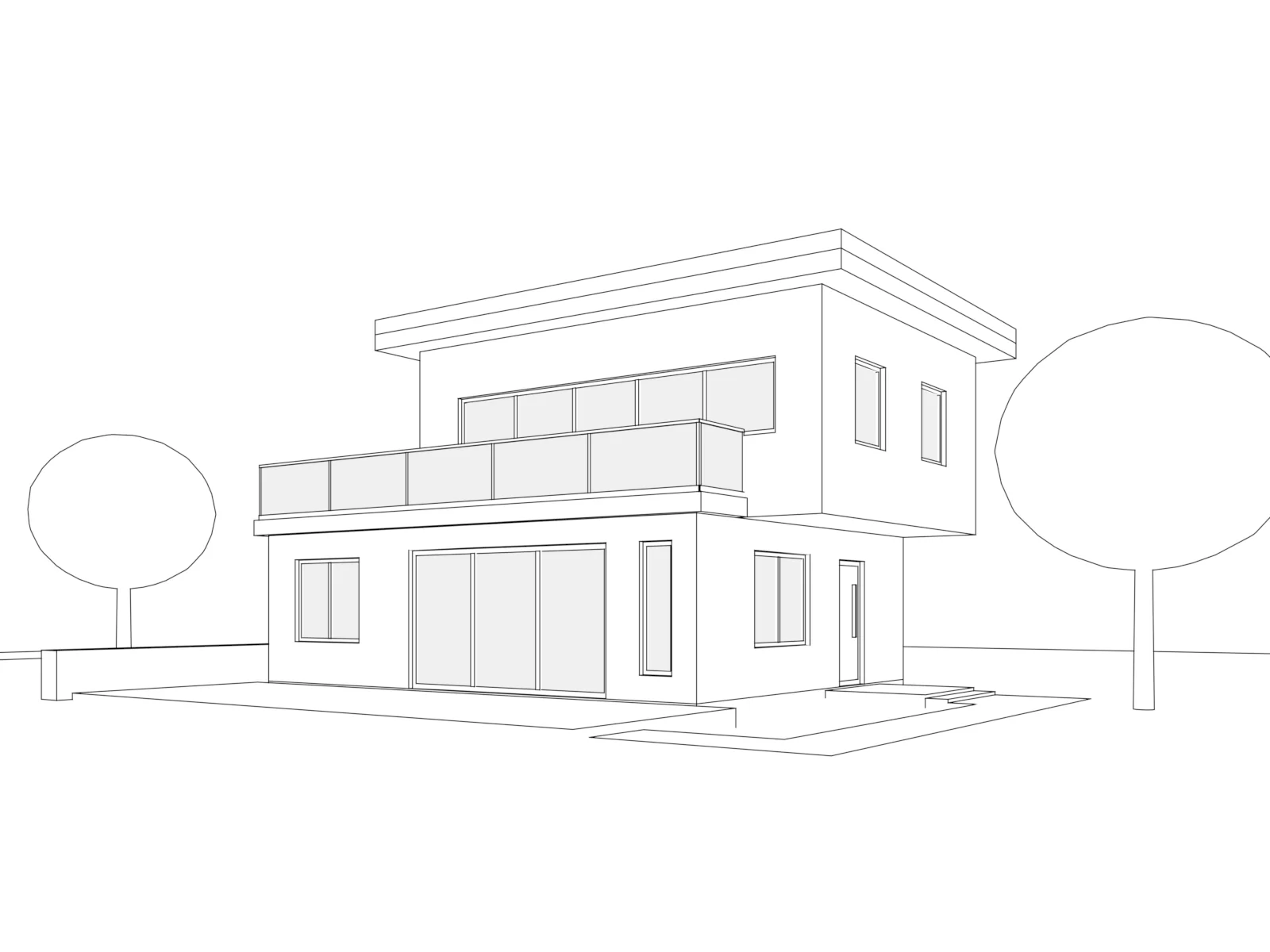
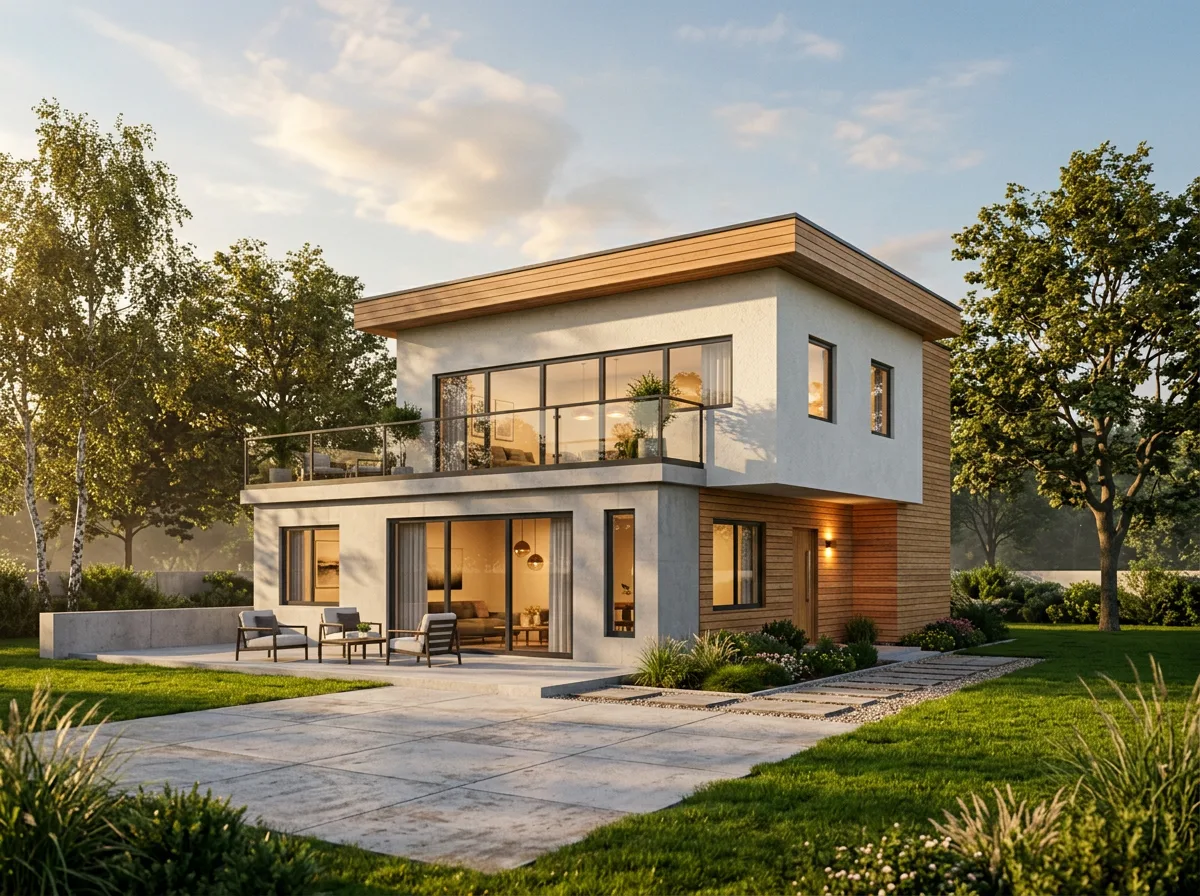
The volumes, the ribbon window, the terrace with its glass balustrade, the sliding door and the window positions are recognisable. But a line drawing carries no material information, so the model chose: the upper floor that should be timber came out as white render, timber cladding appeared on the ground floor by the entrance, and the roof fascia turned to timber. It also closed the 1.5 m cantilever over the entrance with a timber-clad wall: the void in the model isn't in the render. Three chairs and a table on the patio, plants on the terrace, birch trees and golden-hour light are the model's decisions too.
Test 2: the shaded view.
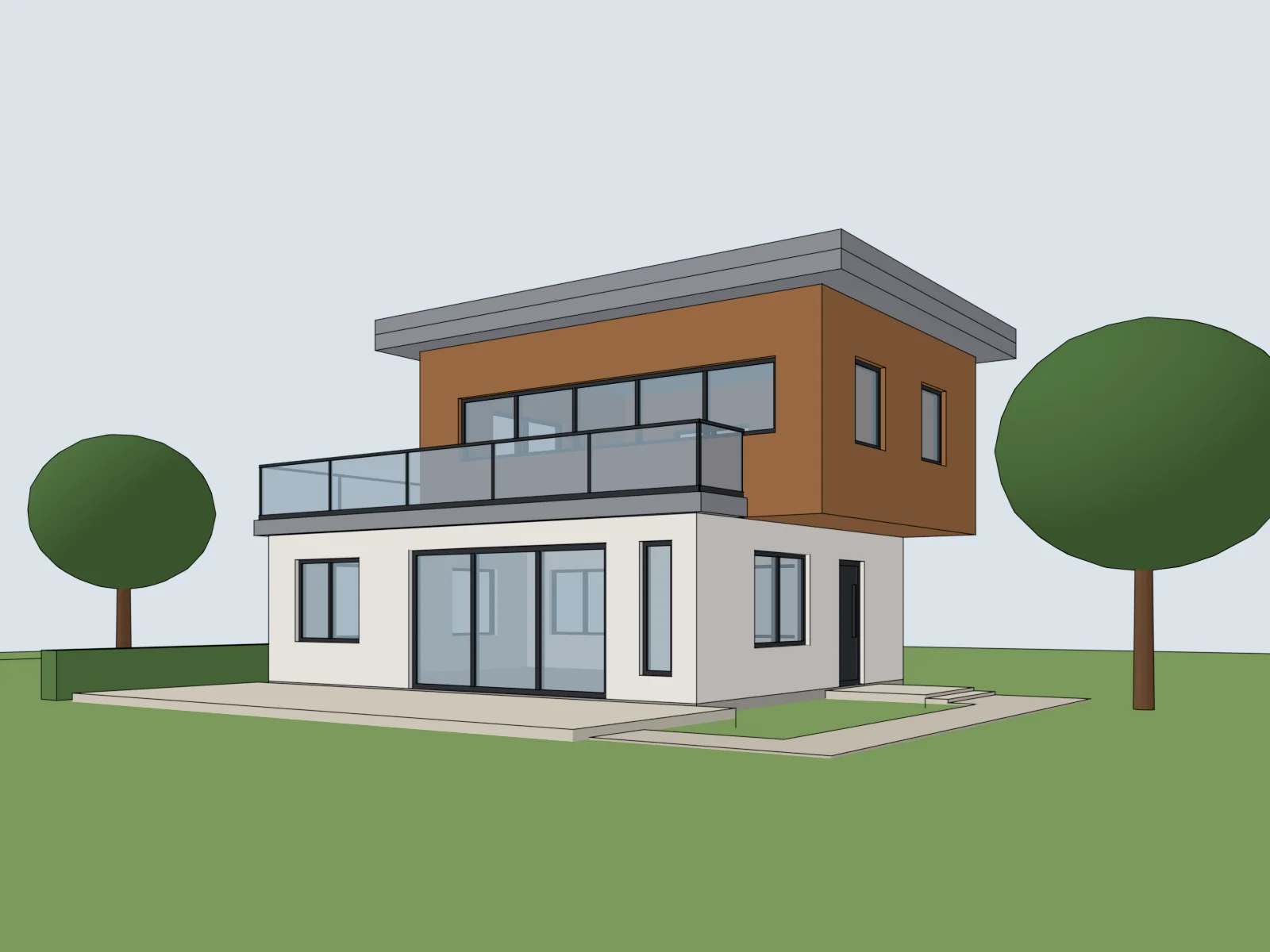
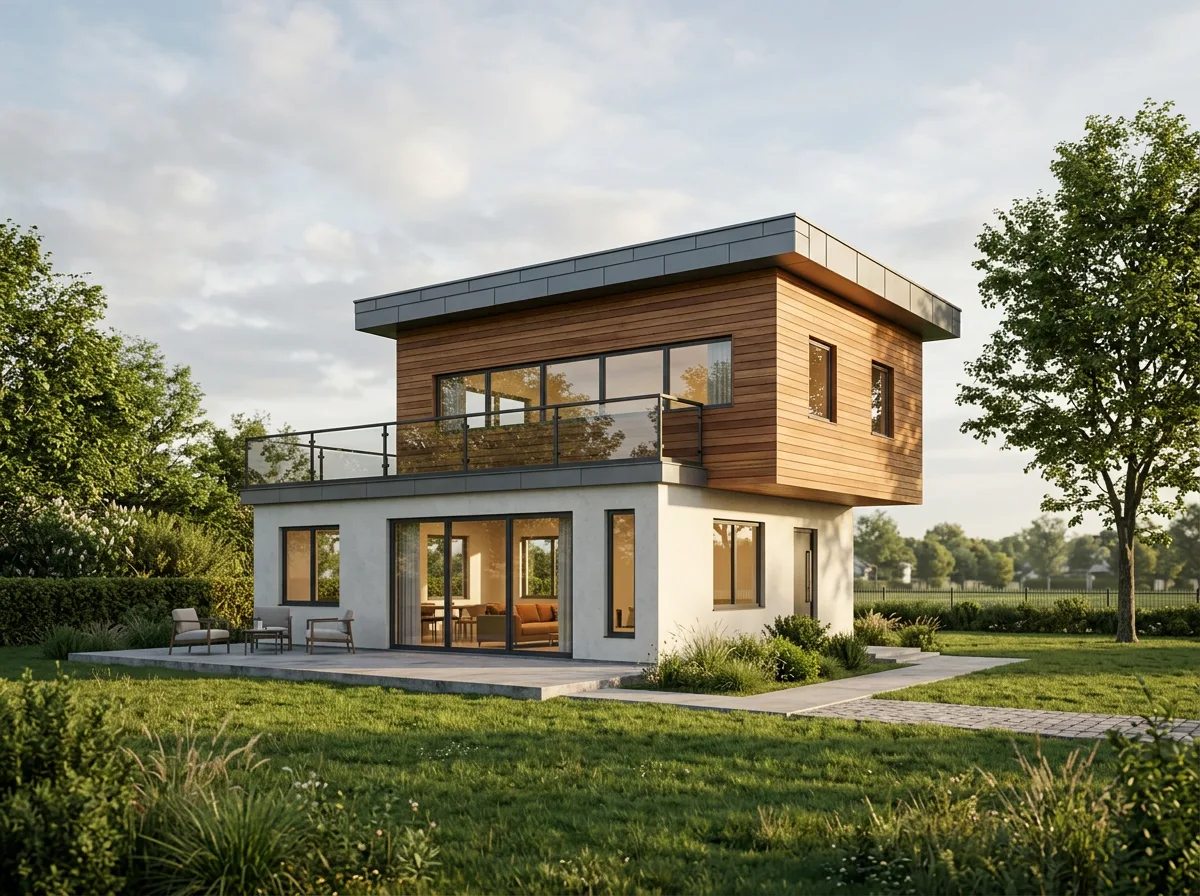
The colours told the model which surface is which: the upper floor stayed timber, the ground floor white, and the cantilever, entrance door, two small windows and terrace are where they were. Its own decisions are smaller: it made the timber horizontal boards, turned the dark entrance door light grey, put shrubs in front of the steps, moved the trees, added chairs on the paving and chose late-afternoon light.
Test 3: the same shaded view with a short note. On the canvas we typed this note under the preset (the preset's prompt doesn't change; the note is appended):
Keep the camera angle, massing and window layout exactly as they are. Upper floor: warm vertical timber cladding; ground floor: white render; balustrade: clear glass. Soft overcast daylight. Do not add people, cars or new buildings.
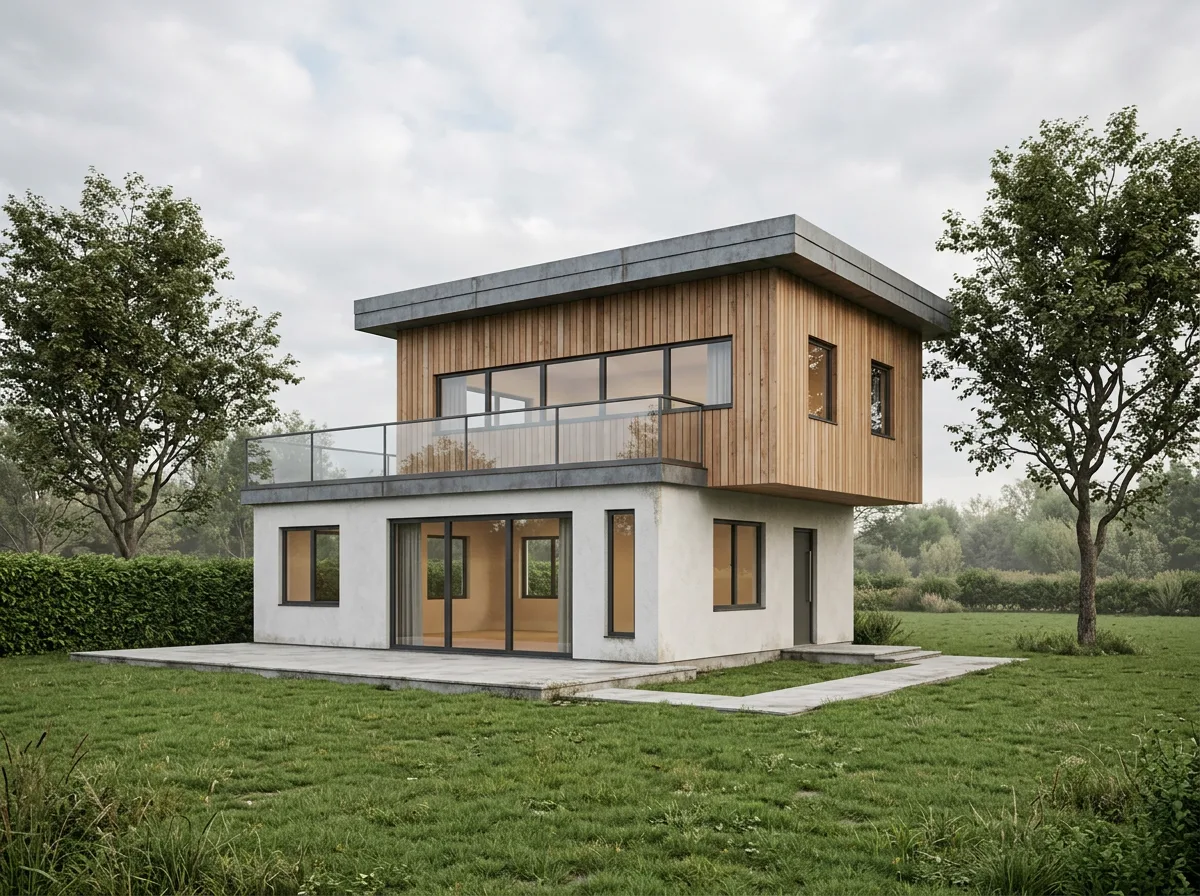
The timber went vertical, the light is overcast, and there are no people or furniture. The cost shows too: the scene is plainer, with an empty interior and a bare lawn. A note gives you control; if you want atmosphere, you have to write that down as well.
The lesson: export a shaded view with clear material colours, and write into the prompt what must not change (massing, cantilever, window layout) and the materials you want. A hidden-line view leaves most material and massing decisions to the model.
What each route can't do
| Route | Can't do |
|---|---|
| Revit's own rendering | Real-time walkthroughs or quick results; quality depends on your material and lighting work. |
| Render engines | Give you a result without scene, material and lighting work; they need a strong GPU, and Revit version support varies by engine. |
| AI (plugin or upload) | Keep every decision yours unless you write it down; exact dimensions, light studies or construction-document images. |
Most offices end up using two of these: an AI route for fast concept and presentation images, and a render engine for the final, technically accurate ones.
FAQ
Does Revit have a built-in renderer?
Yes. The Rendering dialog still runs on Autodesk Raytracer in Revit 2027: choose a quality, set the lighting scheme and background, and click Render. The Ray Trace visual style that older guides mention was removed in Revit 2021.
Is Twinmotion free with Revit?
Twinmotion for Revit is included with standalone Revit, AEC Collection, Flex and Enterprise Agreement subscriptions, so you don't buy a separate licence. Download it from the products page in your Autodesk account and open it from a 3D view with View > Twinmotion > Open in Twinmotion.
Does Revit run on a Mac?
No, Revit is Windows-only. On a Mac you either need a Windows environment, or you export the view and render it with a browser-based tool.
Is there an AI rendering plugin for Revit?
Veras runs inside Revit and now also ships inside Enscape and V-Ray; Autodesk's own AI rendering is in Forma Board. Syntina has no Revit plugin: you export the view and upload it in the browser.
Will AI rendering change my Revit geometry?
It can. In our test, the render from a hidden-line view closed a cantilever and turned the timber volume into white render; a shaded view with clear material colours plus a short note reduced that drift a lot. Compare every render with your model before it leaves the office.
Want to try it on your own Revit view? Export the view, upload it to the View to Render preset and render it with the free credits you get at sign-up. The same comparison exists for SketchUp and Archicad; and if you're wondering how this differs from a general chat app, see Syntina vs ChatGPT and Gemini.