
Archicad has more built-in rendering options than most BIM programs: a photoreal engine, a GPU engine, a sketch engine and an AI visualizer, all inside. But some of them work or don't depending on your version, your licence and your graphics card, and several changed in 2026.
This guide walks through the four routes with their steps and traps, and ends with real renders showing what a short note changes when you hand an Archicad view to an AI renderer.
How we checked. Facts about Archicad, Twinmotion, Enscape, D5, Lumion and Veras come from the vendors' own documentation, checked on 20 October 2026 and linked in the text. The current release is Archicad 30 (announced 7 October 2026); most help pages we cite are from version 29. We make an AI rendering tool ourselves; Syntina has no Archicad plugin. We don't list prices.
Pick your route in 30 seconds
| Route | You need | Good for | Watch out for |
|---|---|---|---|
| Built-in engines (Cineware, Redshift, Basic, Sketch) | Just Archicad | Photoreal or sketch-style images without extra software | Slow; Redshift is still a "Technology Preview" and doesn't support new NVIDIA cards |
| Archicad AI Visualizer | Archicad 29 or 30, a subscription licence, internet | Fast AI images from your view, inside Archicad | The Archicad 28 version was switched off on 9 October 2026 |
| Render engine (Twinmotion, Enscape, D5, Lumion) | A capable GPU; Windows for D5 and Lumion | Real-time walkthroughs, final images, animation | No V-Ray for Archicad; engines don't list Archicad 30 yet |
| AI from your view (upload) | A browser, plus credits | Concept and presentation images in about a minute | The model decides anything you leave open |
Archicad 30 supports Windows 11 and macOS 15/26 (Graphisoft system requirements). On a Mac your engine choices narrow; we note where.
First, prepare the view (every route benefits)
- Fix the perspective. Set the camera in the 3D window and save it; being able to return to the same frame keeps engines and AI consistent.
- Hide what you don't need. Switch off layers with elements that are out of frame or unfinished; everything visible goes into the render.
- Give surfaces real materials. Cineware renders from your surfaces, and even for AI tools, colours and textures are material hints.
- Turn on the render frame. Document > Creative Imaging > Render Safe Frame shows the area that will end up in the image.
- Test small. Try at low quality and switch to final settings once the frame is settled.
Route 1: Archicad's built-in render engines
Render settings live in the Window > Palettes > PhotoRendering Settings palette. The engine menu has four options (Archicad 29 help):
- Cineware: based on Maxon Cinema 4D, the most realistic built-in engine. Graphisoft's help pages call it "Cineware" and its system requirements page "CineRender"; it's the same engine.
- Basic Rendering Engine: draft quality, quick previews.
- Sketch: non-photoreal, line-drawing style images.
- Redshift: Maxon's GPU engine, still a "Technology Preview" in Archicad.
Steps (creating a rendered image):
- Choose the engine in the PhotoRendering Settings palette. For Cineware, the basic settings are enough for most work: quality (Low, Medium, High, Final), shadows, light-source sliders, White Model Effect and depth of field.
- Click the render icon at the bottom of the palette, or Document > Creative Imaging > PhotoRender Projection. A separate window opens and shows progress; Stop cancels it.
- Save the image yourself: renders aren't stored with the project. Archicad saves images as BMP, JPEG, GIF, TIFF or PNG (save formats).
The Redshift trap. According to Graphisoft's current system requirements, Archicad's built-in Redshift engine wants a GPU with 8 GB of VRAM and does not support NVIDIA RTX 40 and 50 series cards; Graphisoft recommends Cineware/CineRender on those cards (system requirements). If Redshift won't run on a new workstation, this may be why. (Maxon's separately sold "Redshift for Architects" plugin is a different product, which Maxon lists as available for Archicad.)
Route 2: Archicad AI Visualizer
Graphisoft's AI visualizer runs inside Archicad: it takes a snapshot of your current 3D view plus a text prompt and generates an image. Which version you're on matters:
- Archicad 28: the AI Visualizer 1.0 infrastructure was fully switched off on 9 October 2026, so it no longer generates images in this version (Graphisoft announcement).
- Archicad 29: AI Visualizer 2.0, updated automatically to 3.0 once Archicad 30 ships.
- Archicad 30: needs a subscription licence (Studio, Collaborate, Max) and an internet connection; runs on Windows and Mac; offers a choice of three AI engines, editing a selected part of the image and 4x upscaling (Graphisoft AI Visualizer).
Steps (Archicad 30 help):
- Open the palette with Window > Palettes > AI Visualizer.
- On the Generate tab, write a prompt and, if you like, a negative prompt. Use a snapshot of the current view or an uploaded image as the image prompt.
- Generate. On the Edit tab, mask a part of the image to change it.
- Save on the Save tab. A new generation discards the previous one, so save what you like first.
Graphisoft doesn't publish credit counts or usage limits; it says capacity varies by product version and plan. If you have an Archicad 29 or 30 subscription, this is the AI route to try first.
Route 3: a render engine
| Engine | How it connects to Archicad | Archicad versions (vendor docs) | Operating system |
|---|---|---|---|
| Twinmotion | Separate app via the Datasmith Exporter with Direct Link | Archicad 23-29 | Windows and macOS (no path tracer or VR on Mac) |
| Enscape | Plugin inside Archicad | Archicad 27, 28, 29 | Windows and macOS |
| D5 Render | Separate app linked by the LiveSync plugin | Archicad 21-30 | Windows only |
| Lumion | Separate app linked by LiveSync | LiveSync supports Archicad; check Lumion for the version range | Windows only |
- There's no V-Ray for Archicad. Chaos's V-Ray page lists Revit, SketchUp, Rhino, 3ds Max, Cinema 4D and Blender; Chaos's product for Archicad is Enscape (Chaos).
- Lumion View for Archicad launched in March 2026 and was discontinued on 15 September 2026 (Lumion FAQ).
- If you've moved to Archicad 30: as of 20 October, the Twinmotion and Enscape pages don't list 30 yet; D5 does.
- On a Mac, your options are Enscape and Twinmotion without its path tracer.
- Veras comes as a separate plugin for Archicad 28 and, since May 2026, inside Enscape (Chaos).
Route 4: an AI render from your view (a real test)
The fourth route needs nothing installed in Archicad: save the 3D window's view as an image file and upload it to an AI tool in your browser. In Syntina that's the View to Render preset; for several views, the Batch Render tool runs up to 25 images with the same settings.
Why, when AI Visualizer exists? The honest answer: if you have an Archicad 29 or 30 subscription, AI Visualizer may be enough for a single image. Syntina's difference is that it works regardless of your Archicad version or licence, and that it moves the frame onto a canvas: day, night and material variations from the same source side by side, then video, a 360° panorama or a 3D model. We showed why a canvas tied to the source matters, with an experiment, on Syntina vs ChatGPT and Gemini.
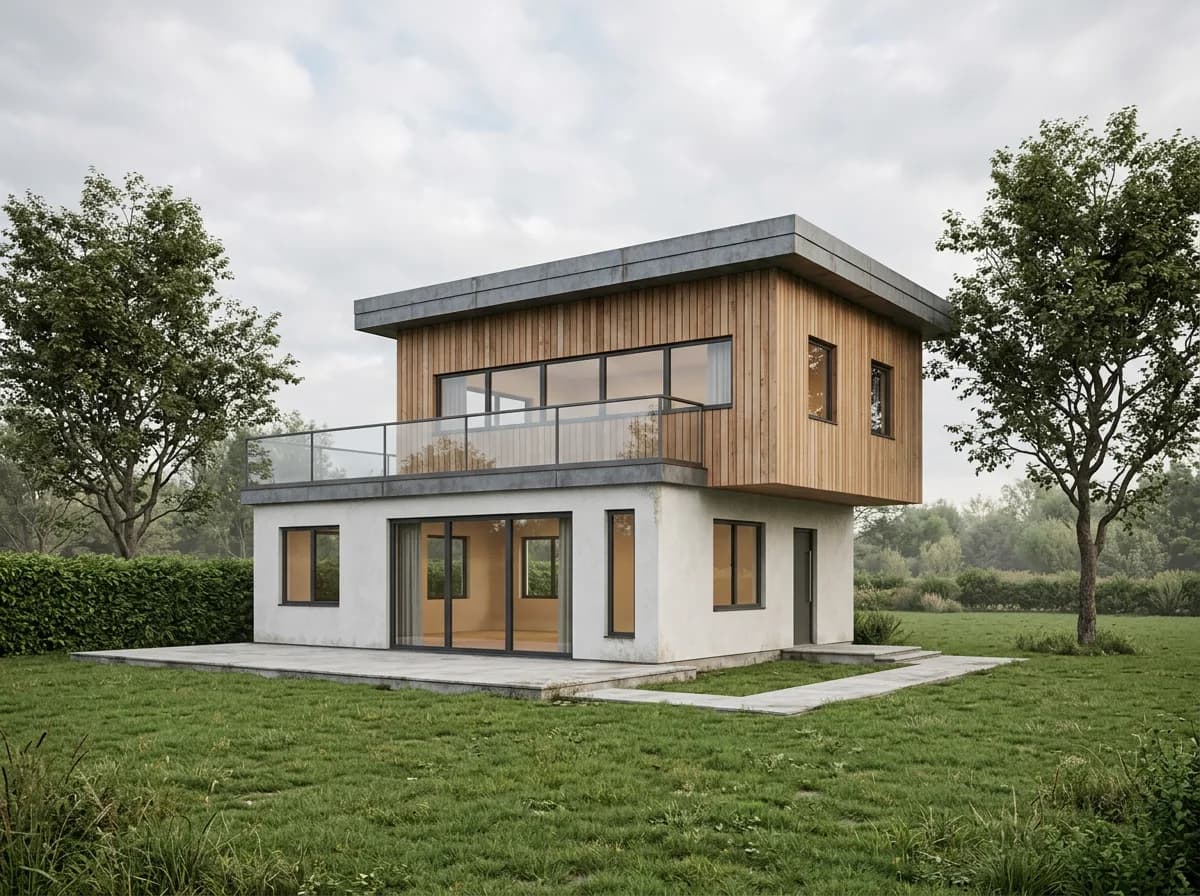
How we tested. We don't have an Archicad seat, so we built a simple house in Blender and drew it like a BIM "shaded" view: flat material colours and black edge lines. The house has two volumes: a white-rendered ground floor and a timber-clad upper floor that cantilevers 1.5 m over the entrance, plus a terrace with a glass balustrade. We rendered the view with Syntina's live View to Render preset and the app's default engine, one attempt each: first with no note, then with a short one. We covered the same house's hidden-line view in our Revit guide: there, the model turned the timber into white render and closed the cantilever.
No note:
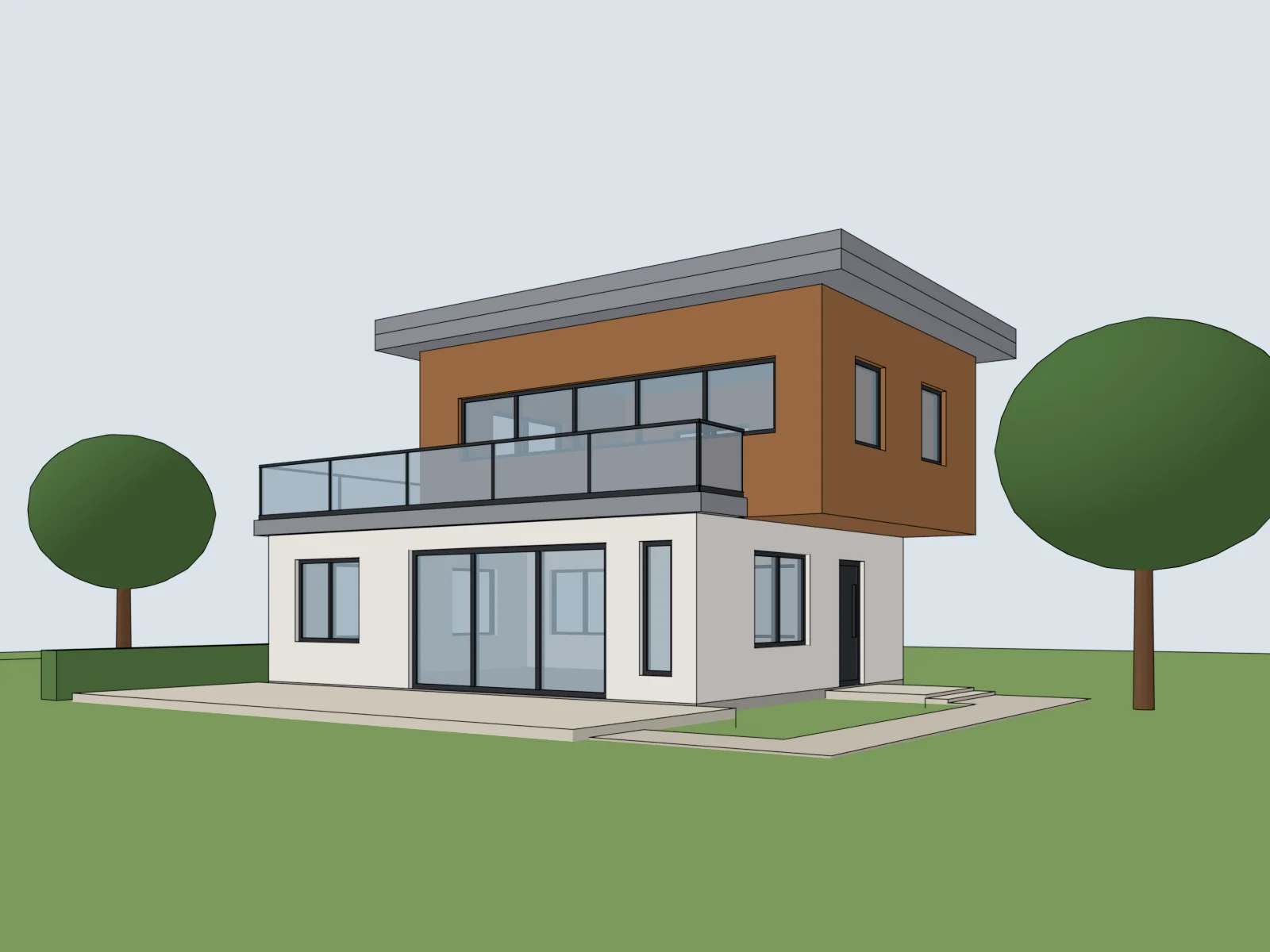
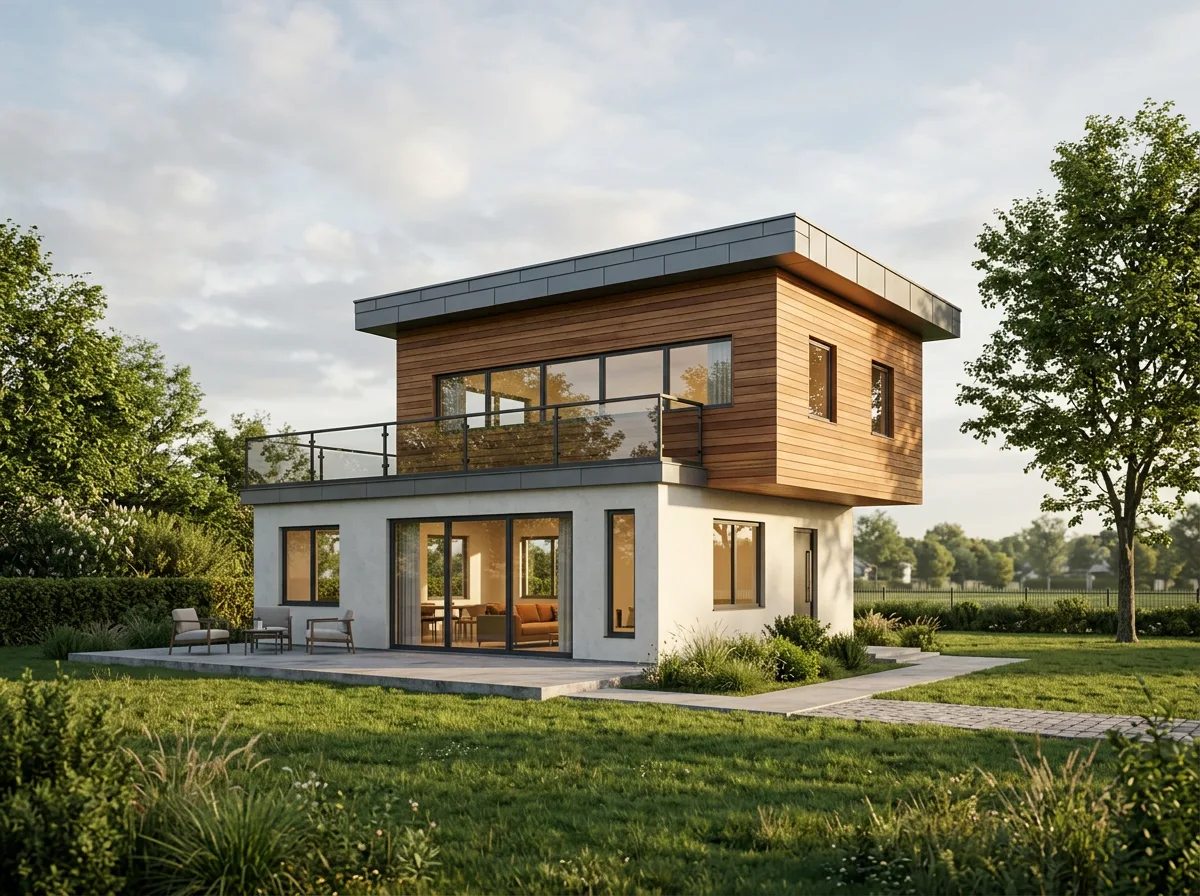
The split between volumes, the cantilever, the windows and the terrace are in place; the colours told the model which surface is which. The model made the remaining decisions: the timber became horizontal boards, the dark entrance door turned light grey, and shrubs in front of the steps, chairs on the paving, furniture inside and warm late-afternoon light appeared. Nice for a presentation, but none of it was your decision.
With a note: we typed this under the preset:
Keep the camera angle, massing and window layout exactly as they are. Upper floor: warm vertical timber cladding; ground floor: white render; balustrade: clear glass. Soft overcast daylight. Do not add people, cars or new buildings.
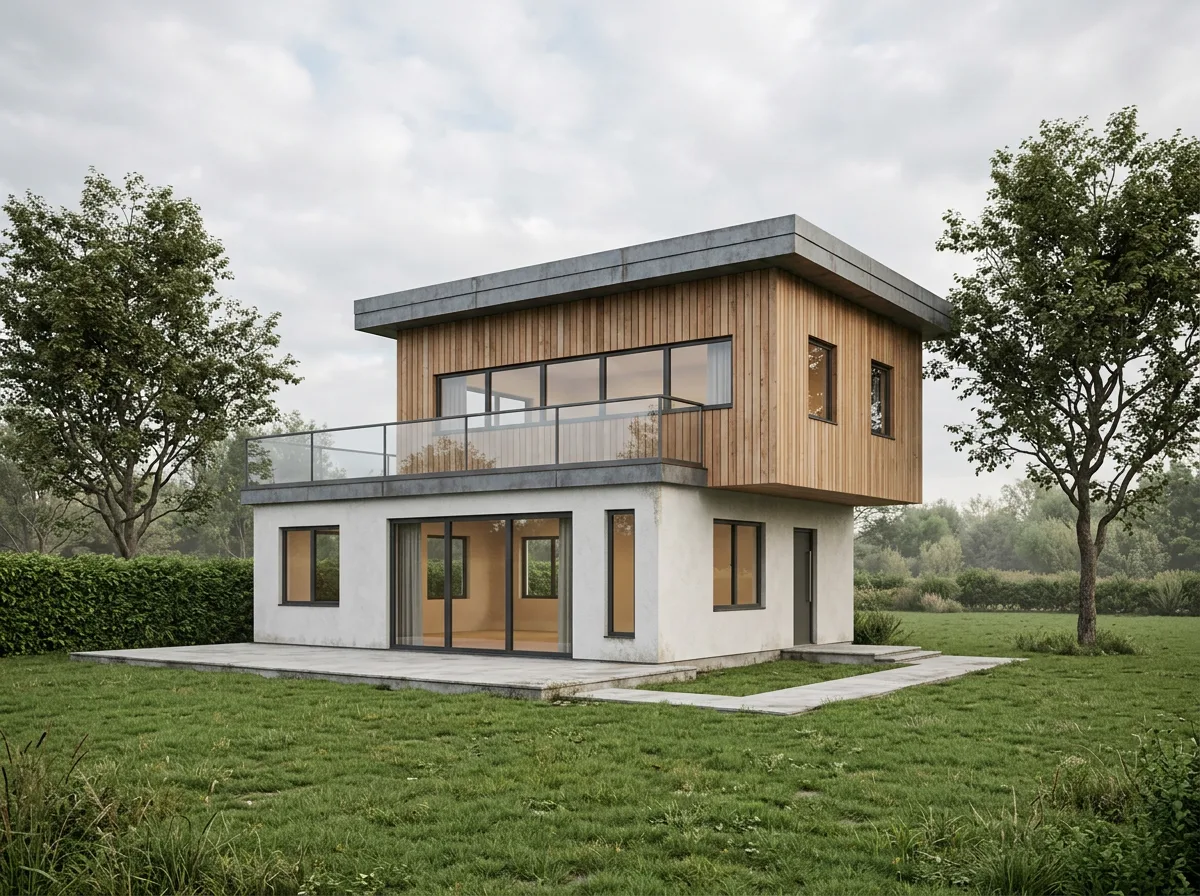
Everything we asked for arrived: vertical timber, white render, clear glass, overcast light, and no people or furniture. The cost: a plainer scene, an empty interior and a bare lawn.
The lesson: a note gives you control, but it also asks you to write the atmosphere yourself. A good note says three things: what must not change (camera, massing, window layout), the materials (with direction: "vertical timber") and the light and setting. Any heading you leave out, the model fills in to its own taste. For more examples, see our guide to AI rendering prompts.
What each route can't do
| Route | Can't do |
|---|---|
| Built-in engines | Real-time walkthroughs; Redshift doesn't run on new NVIDIA cards. Renders aren't saved with the project. |
| AI Visualizer | Work in Archicad 28 anymore; it needs a subscription and internet; it doesn't guarantee geometry. |
| Render engines | Give you a result without scene, material and lighting work; D5 and Lumion don't run on a Mac, and there's no V-Ray for Archicad. |
| AI from your view | Keep every decision yours unless you write it down; exact dimensions, light studies or construction-document images. |
FAQ
Does Archicad have a built-in render engine?
Yes. The PhotoRendering Settings palette offers Cineware (CineRender), Basic, Sketch and Redshift. Cineware is the most realistic built-in option; Redshift is still a technology preview and doesn't support NVIDIA RTX 40/50 cards.
Which Archicad versions have AI Visualizer?
It runs as version 2.0 in Archicad 29 and 3.0 in Archicad 30, and needs a subscription licence and an internet connection. The infrastructure for version 1.0 in Archicad 28 was switched off on 9 October 2026.
Is there V-Ray for Archicad?
No. Chaos's engine for Archicad is Enscape. Twinmotion, D5 and Lumion also work with Archicad; D5 and Lumion run on Windows only.
Which render engine can I use with Archicad on a Mac?
The built-in Cineware, Enscape, and Twinmotion without its path tracer. D5 Render and Lumion are Windows-only.
Will AI rendering change my Archicad geometry?
It can. In our tests, a view with clear material colours plus a short note kept the massing, the cantilever and the window layout, while a lines-only view left most material and massing decisions to the model. Compare every render with your model before it leaves the office.
Want to try it on your own Archicad view? Save the view, upload it to the View to Render preset and render it with the free credits you get at sign-up. The same comparison exists for Revit and SketchUp.