
Enscape alternative for architects: when Syntina fits, when it doesn't
Enscape is a real-time rendering and VR plugin that renders your actual Revit, SketchUp, Rhino, Archicad or Vectorworks model live. Syntina is a browser-based AI image generator that starts from a sketch, photo or plan and needs no GPU. Here's an honest, fact-based comparison of where each one earns its place.
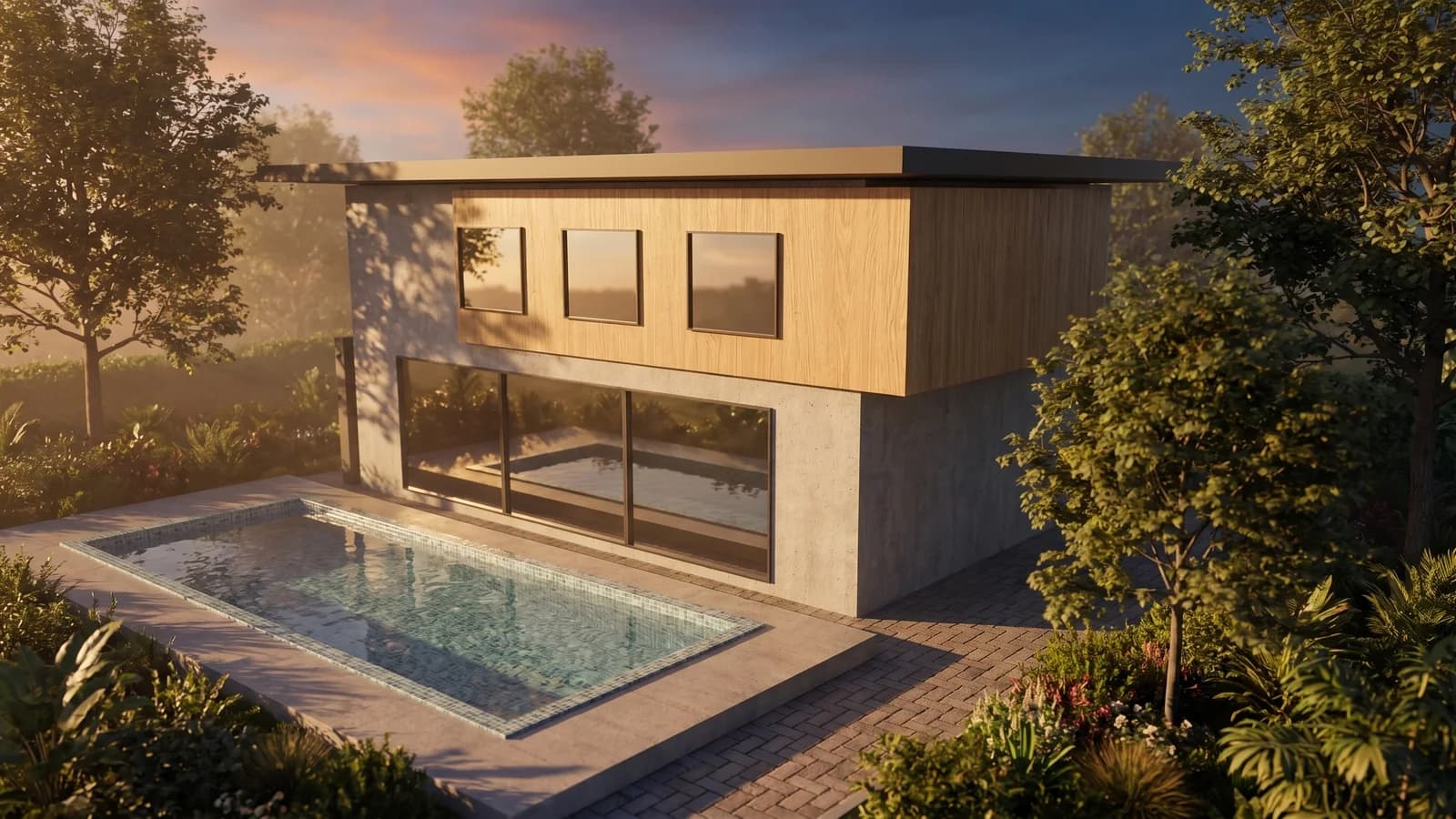 Syntina output — Blender, single attempt
 Model, panel and result on one screen
 Panel: account, scene, preset, credit estimate
No GPU, no install
Syntina runs entirely in the browser and renders in the cloud — no capable graphics card, no plugin install, no Windows requirement.
Works before you have a 3D model
A hand sketch, a site photo, or a flat 2D plan is enough to start; you don't need a Revit, SketchUp or Rhino scene set up first.
Not a substitute for real-time walkthroughs or VR
Enscape's live navigation and VR headset support stay unmatched for client walkthroughs of the actual model — Syntina generates fixed still images, not real-time movement.
Who It's For
Enscape or Syntina? Different stage, different job.
Enscape is a real-time rendering and VR plugin built into Revit, SketchUp, Rhino, Archicad and Vectorworks. It renders the model you already have, live, so you can walk through your own design, put a client in a VR headset, and adjust materials or the time of day while they watch. That needs a capable graphics card and, for most workflows, a Windows machine — a Mac version exists for some host applications, but check Chaos for current platform support. If you already have a 3D model and want your client inside it in real time, Enscape is doing exactly what it was built for; we're not arguing otherwise.
Syntina is built for a different moment: before a model exists, or when nobody on the team wants to wait on a render workstation. It runs entirely in the browser, needs no GPU, and starts from a sketch, a site photo, or a flat 2D plan — there's no scene to build first. A generation takes about a minute, and the same account covers interior, exterior, floor-plan, concept and before/after renovation work through one library of 39 presets.
In short: if your model is built and you want your client walking through it live, in VR, use Enscape. If all you have is a sketch, a photo, or an idea you want to pitch before committing to a full 3D build — or you're working from a laptop without a strong GPU — Syntina gets you a presentable image faster.
Example Outputs
Sample frames from this workflow.
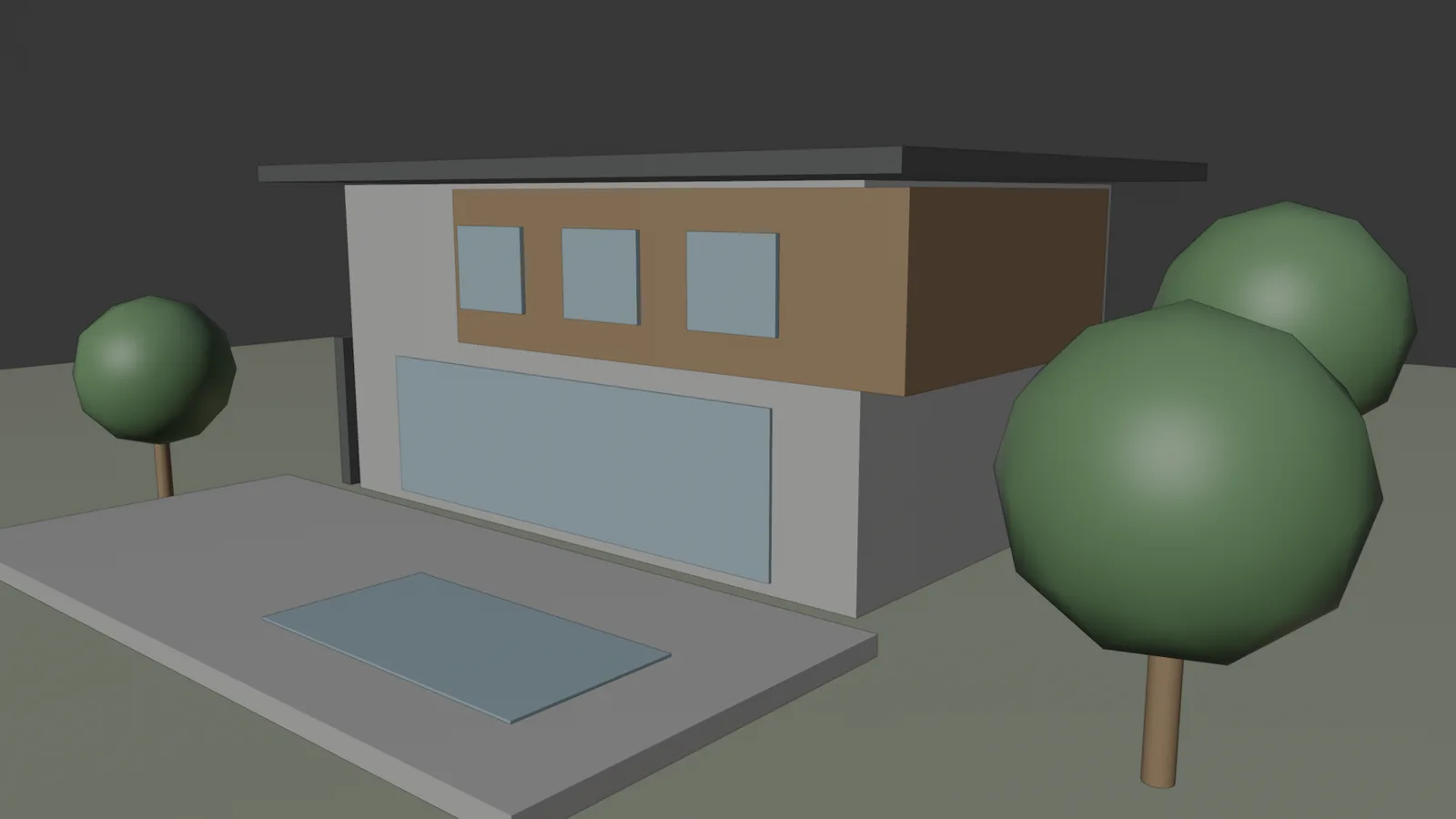
This is not an Enscape screenshot — it's Syntina's own output. Left: the viewport as captured by the add-on (2048 px). Right: the View to Render preset, one attempt; brief: "warm late-afternoon light, light oak cladding, lush garden". Camera, massing and pool position are preserved.
Model, panel and result on one screenPanel: account, scene, preset, credit estimate Model settings and result
How It Works
From brief to output in three steps.
- 01
Upload what you have
Upload a sketch, photo, plan, or an exported Enscape/viewport screenshot from your browser — no plugin install or GPU check needed.
Input: Sketch, photo, or 2D plan, An Enscape screenshot or any other viewport capture, if you have one, Reference style images, A short project brief
- 02
Generate variations
Compare material, light and atmosphere options on the same input using Syntina's preset library (View to Render, Golden Hour, Day to Night, Change Material, and more).
- 03
Export the frame you need
Download the still you like at high resolution for a deck or client email; for a live walkthrough, keep using Enscape on the finished model.
Output: Presentation-quality interior and exterior stills, 3D floor plan and concept images, A 3D model (GLB) generated from a single image
In Depth
Enscape vs. Syntina, in four questions
A real-time engine, or cloud generation?
Enscape renders your actual 3D scene in real time inside the host application; move the camera and the render updates instantly, which is what makes VR walkthroughs possible.
Syntina generates a still image in the cloud from whatever you upload. There's no live camera movement and no VR mode — each generation is a fixed frame, delivered in about a minute.
Do you need a 3D model first?
Enscape needs an existing Revit, SketchUp, Rhino, Archicad or Vectorworks model to render — it enhances a scene you've already built.
Syntina doesn't require a 3D model at all. A sketch, a photo of a site, or a 2D floor plan is enough input to generate a presentable image, which matters most at the very early concept stage.
Hardware and access
Enscape needs a capable GPU and runs primarily on Windows to hold real-time frame rates; VR adds a headset to the requirements.
Syntina runs in any modern browser on any device — a laptop, a tablet, even a phone — because the rendering happens on Syntina's servers, not yours.
What each one is actually best at
Enscape's strength is letting a client walk through the real design, live, and experience scale and space in VR — nothing on this page replaces that for a design-review meeting.
Syntina's strength is speed and reach at the concept stage: fast style and lighting variations from a sketch, photo, or plan, with no CAD file or GPU required to get started.
Prompt Patterns
Copy, paste, try it.
Pattern 1 — Lifting an Enscape screenshot
You have a quick Enscape screenshot from a design review and want a higher-polish still for a client email, without re-opening the VR session.
Keep this view's camera angle, framing and composition exactly as is. Improve material realism and lighting only: add natural daylight with soft shadows, realistic reflections, and refined material texture on the visible surfaces. Do not move or resize any object, and do not change the layout.
Naming the frame and composition as fixed is the closest equivalent to polishing a real-time capture without touching the design.
Pattern 2 — Pitching before the model exists
You're still at concept stage, before a Revit or SketchUp model is worth building, and need a presentable image from a hand sketch.
Convert this architectural sketch into a photorealistic exterior render, preserving its massing, proportions and design intent; don't reinterpret the design. Apply realistic materials, afternoon light, and a natural surrounding landscape.
This is the stage before Enscape is even usable — there's no 3D model to plug it into yet.
Pattern 3 — Fast material options for a client call
You want three material directions ready before a call, without setting up new material overrides in your CAD scene.
Using this exterior view, generate three material variations for the facade: (1) light oak cladding, (2) painted white render, (3) dark brick. Keep the camera, massing and surroundings identical across all three; change only the facade material and its lighting response.
A fast way to pre-narrow options before doing the final material pass in your CAD software.
Comparison
Enscape and Syntina AI, side by side
This table covers Enscape's verified, publicly documented features; it does not include Enscape's price list, since licensing terms change over time — check Chaos for current pricing.
| Criterion | Enscape | Syntina AI |
|---|---|---|
| Working environment | Plugin inside Revit, SketchUp, Rhino, Archicad or Vectorworks | Web browser, no installation |
| Starting input | An existing 3D model in the host application | Sketch, photo, plan, or viewport capture |
| Hardware requirement | A capable GPU; runs primarily on Windows (check Chaos for current Mac support) | None — rendering happens in the cloud |
| Rendering approach | Real-time rasterized rendering with live VR walkthroughs | Cloud-based AI image generation, one frame per generation |
| Time to first image | Instant once the model and scene are set up | About a minute from a single upload, no model required |
| What it's best at | Live client walkthroughs and VR presentations of the actual model | Fast concept images and variations before or without a 3D model |
| What it can't do | Doesn't help before a 3D model exists | No real-time navigation or VR walkthrough |
| Pricing model | Paid per-seat licensing (check Chaos for current pricing) | Credit-based, from $19/month (Starter), Pro $45, Business $99 |
Scenarios
Where it's used in the field.
- Early concept and pitch images before a 3D model exists
- Architecture teams working on laptops without a dedicated GPU
- Fast material and lighting variations from an existing viewport or Enscape screenshot
Final Check
Is Syntina right for you?
- You don't have a finished 3D model yet — only a sketch, photo, or plan.
Syntina generates directly from these; Enscape needs a model to render.
- You're working on a laptop without a dedicated GPU.
Syntina renders in the cloud, so your hardware doesn't limit the output.
- You need a fast still image, not a live walkthrough.
For VR and real-time navigation of the actual model, Enscape remains the better tool.
- You want to compare several material or lighting directions quickly.
Generate a few variations from the same input before committing to a full CAD material setup.
- You'd rather pay for what you generate than a per-seat license.
Plans start at $19/month; you use only the credits you spend.
FAQ
Frequently asked questions
- Should I choose Enscape or Syntina?
- If you already have a 3D model and want your client walking through it live or in VR, use Enscape — that's what it's built for. If you're at the sketch or photo stage, or you need a fast still without a GPU, Syntina gets you there faster.
- Can I use Syntina together with Enscape?
- Yes. Many teams use Syntina early — sketches, photos, and quick material options — before the 3D model is finished, then switch to Enscape once there's a model worth walking through live.
- Is Syntina a replacement for Enscape?
- No. Syntina doesn't do real-time navigation or VR, and Enscape needs a finished 3D model to render. They solve different problems at different stages of a project.
- Do I need a powerful GPU to use Syntina?
- No. Rendering happens on Syntina's servers, so it works on any device with a modern browser, including a laptop without a dedicated graphics card.
- Can I upload an Enscape screenshot to Syntina?
- Yes. An exported Enscape frame or any other viewport capture works as an input image if you want to push the material or lighting further with Syntina's presets.
- Can I try Syntina for free?
- Yes. You get free credits when you sign up and can move to a paid plan whenever you need more.
See which one fits your next project
If your model already exists and your client needs to walk through it, Enscape is the right tool. If you're still at the sketch or photo stage and want a presentable image today, try Syntina.
Sign up with free credits and generate your first image in the browser, no GPU required.